Recording matings
A mating is the starting point of every breeding record. When a ewe or doe is mated, you record this in Herdy. This keeps you on top of expected births and allows you to monitor pregnancies systematically.
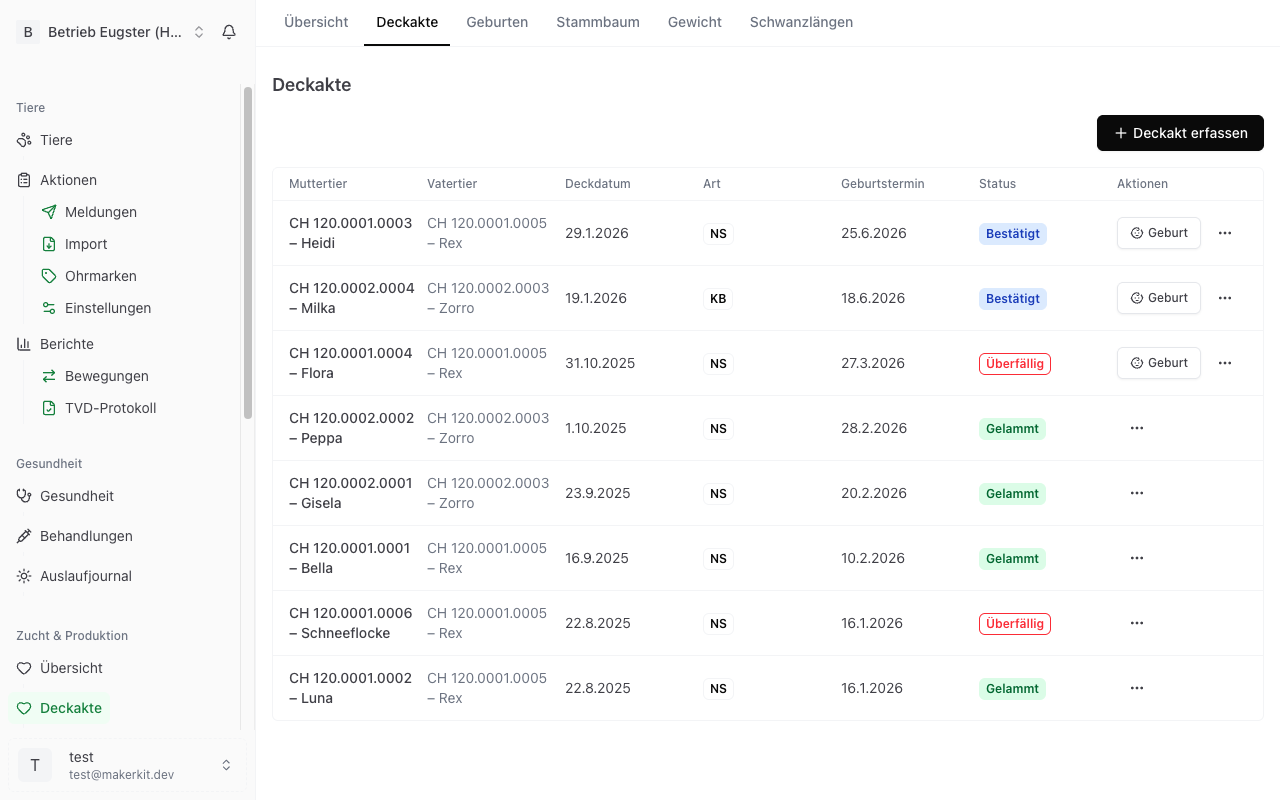
Recording a new mating
- Navigate to Breeding and select the Matings tab.
- Tap Record mating.
- Fill in the form (see below).
- Tap Save.
Fields in detail
Dam (required)
Select the female animal from your herd. The selection list shows only female animals (ewes and does).
Mating date (required)
Enter the date of the mating. Herdy suggests today's date. If you are adding the mating retrospectively, adjust the date accordingly.
Sire / Buck (optional, recommended)
Select the ram or buck from your herd. If the sire is not registered in your herd (e.g. for a borrowed ram), you can leave this field blank.
Tip: Record the sire whenever possible. This information is important for the pedigree and helps you avoid inbreeding.
Type of mating (optional)
Choose the type of mating:
- Natural mating — The ram or buck mates the ewe or doe naturally
- Artificial insemination (AI) — Insemination by a veterinarian or insemination technician
Notes (optional)
You can record additional information here, e.g. whether the mating was observed or whether this is a repeat attempt.
Automatic calculation of the expected birth date
As soon as you save the mating, Herdy automatically calculates the expected birth date. The calculation is based on the average gestation period:
- Sheep: approx. 150 days
- Goats: approx. 150 days
The calculated date appears immediately on the mating detail page and in the pregnancy overview.
Tip: The calculated birth date is a guideline. The actual gestation period can vary by a few days depending on breed and individual factors.
Mating status
Every mating goes through a lifecycle with several statuses:
Active
The mating has been recorded and the pregnancy is neither confirmed nor ruled out. This status is set automatically when the mating is recorded.
Pregnancy confirmed
You have confirmed the pregnancy, e.g. after an ultrasound or clear signs. Activate the Pregnancy confirmed switch on the detail page.
Lambed / Kidded
A birth has been recorded for this mating. This status is set automatically when you link a birth to the mating.
Unsuccessful
The mating did not result in a pregnancy, e.g. when the animal comes back into heat.
Cancelled
The mating was cancelled or voided for another reason.
Actions on a mating
The following actions are available on the detail page of a mating:
- Confirm — Marks the pregnancy as confirmed. Ideal after an ultrasound or when you are sure the animal is pregnant.
- Record birth — Takes you directly to the birth form with the dam and sire pre-filled.
- Unsuccessful — Marks the mating as unsuccessful. Use this when the animal comes back into heat or a negative pregnancy test is available.
- Edit — Change the mating details, e.g. the date or the sire.
- Delete — Removes the mating completely. Only use this if the entry was created by mistake.
Tip: Use the Record birth button on the mating detail page to link the birth directly to the mating. That way you do not need to re-enter the dam and sire.
Matings in the overview
All recorded matings appear as a list in the Matings tab. At a glance you can see:
- Dam and sire
- Mating date
- Expected birth date
- Current status (colour-coded)
Actions in the list
Each entry shows the most important actions directly as buttons depending on its status:
- For an unconfirmed mating, the Confirm button appears to confirm the pregnancy.
- For a confirmed mating, the Birth button appears to record a birth directly.
The three-dot menu (⋯) on the right of each entry gives access to further actions:
- Birth — Record a birth (for unconfirmed matings that do not yet show the Birth button)
- Unsuccessful — Mark the mating as unsuccessful
- Delete — Remove the mating (with a confirmation prompt)
Tip: Deleting a mating must be confirmed in a confirmation dialog. This prevents accidental deletions.