Overview
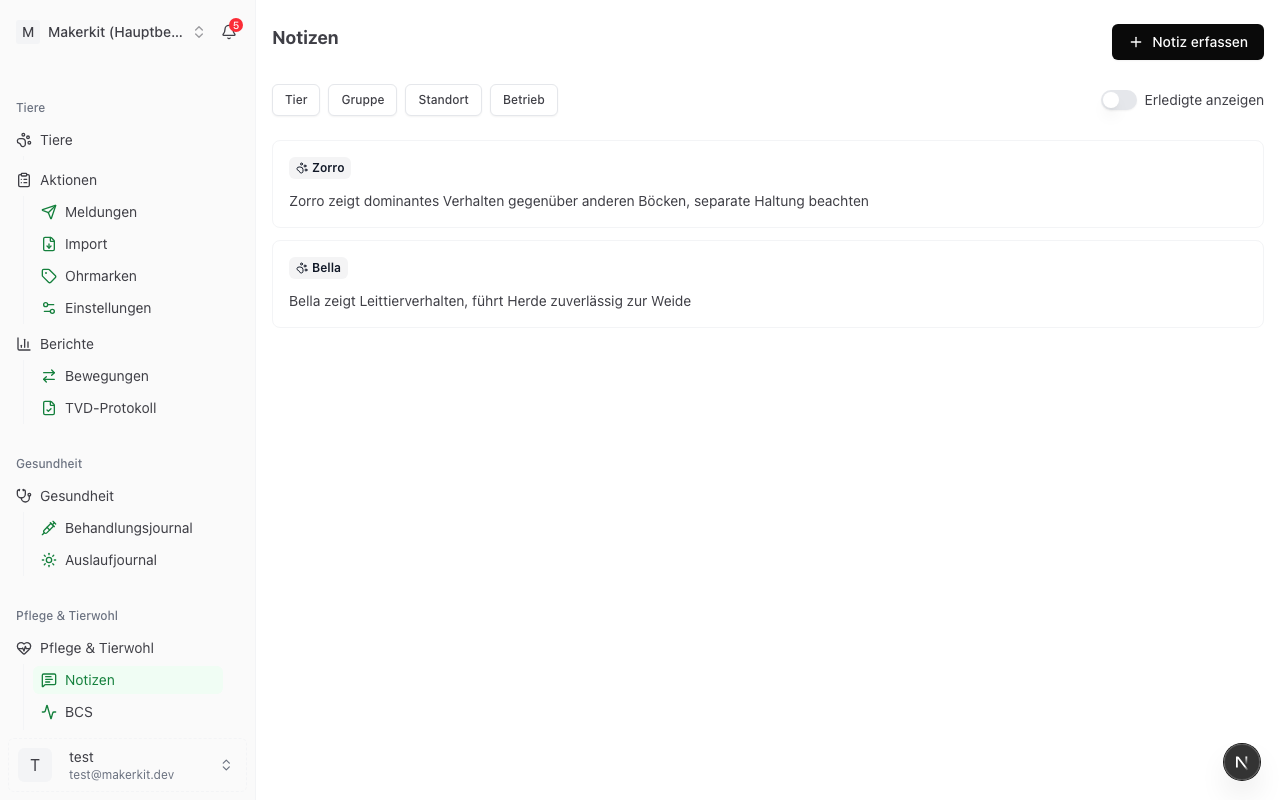
Not every observation belongs in the treatment journal. Sometimes you just want to note that an animal is noticeably limping, that a group is restless, or that the fence at the "farmyard pasture" location is loose. Notes are exactly for that purpose.
Recording a note
How to create a new note:
- Go to Care > Notes
- Tap New note
- Select the reference (scope):
- Animal -- the note appears in the timeline of a single animal
- Group -- the note relates to an entire group (e.g. "Ewes 2025")
- Location -- the note relates to a place (e.g. "Farmyard pasture")
- Select the specific animal, group, or location
- Tap the text field and enter your observation
Tip: If you start a note directly from the animal profile (via the floating plus button), the animal is automatically pre-selected.
Voice input
If your hands are dirty or you are out and about, use voice input:
- Tap the microphone icon next to the text field
- Dictate your observation -- the text appears as you speak
- Correct individual words after dictating if needed
- Tap the microphone icon again to end the recording
Attaching a photo
A picture says more than a thousand words -- especially for injuries, skin conditions, or barn problems:
- Tap the photo icon in the form
- Choose between Camera and From gallery
- With "Camera", the phone camera opens directly
- The photo taken appears as a preview in the form
- When saving, the photo is stored securely and is only visible to members of your farm
Setting a follow-up
If the note requires a later action (call the vet, check progress), set a follow-up date:
- Activate the Follow-up needed checkbox
- Select the follow-up date
- Tap Save
The note appears at the top of the care overview from the selected date onwards. It also appears in the daily follow-up e-mail digest.
Tip: Set follow-ups conservatively -- sooner rather than later. You can mark a follow-up as done at any time.
Completing a note
When a note is no longer current or the follow-up has been dealt with:
- Open the note
- Tap Done -- the note is removed from the open follow-ups
- If you completed it by mistake, an Undo button appears for 5 seconds
Completed notes remain visible in the history and on the animal profile -- they only disappear from the follow-up list.
Editing or deleting a note
- Tap the desired entry in the notes list
- Edit and Delete are available via the three-dot menu
- When deleting, the attached photo is also removed
In the animal profile
All notes relating to an animal appear in the animal's timeline. This lets you see at a glance what has been observed over weeks and months -- valuable context for the next veterinary visit.