Overview
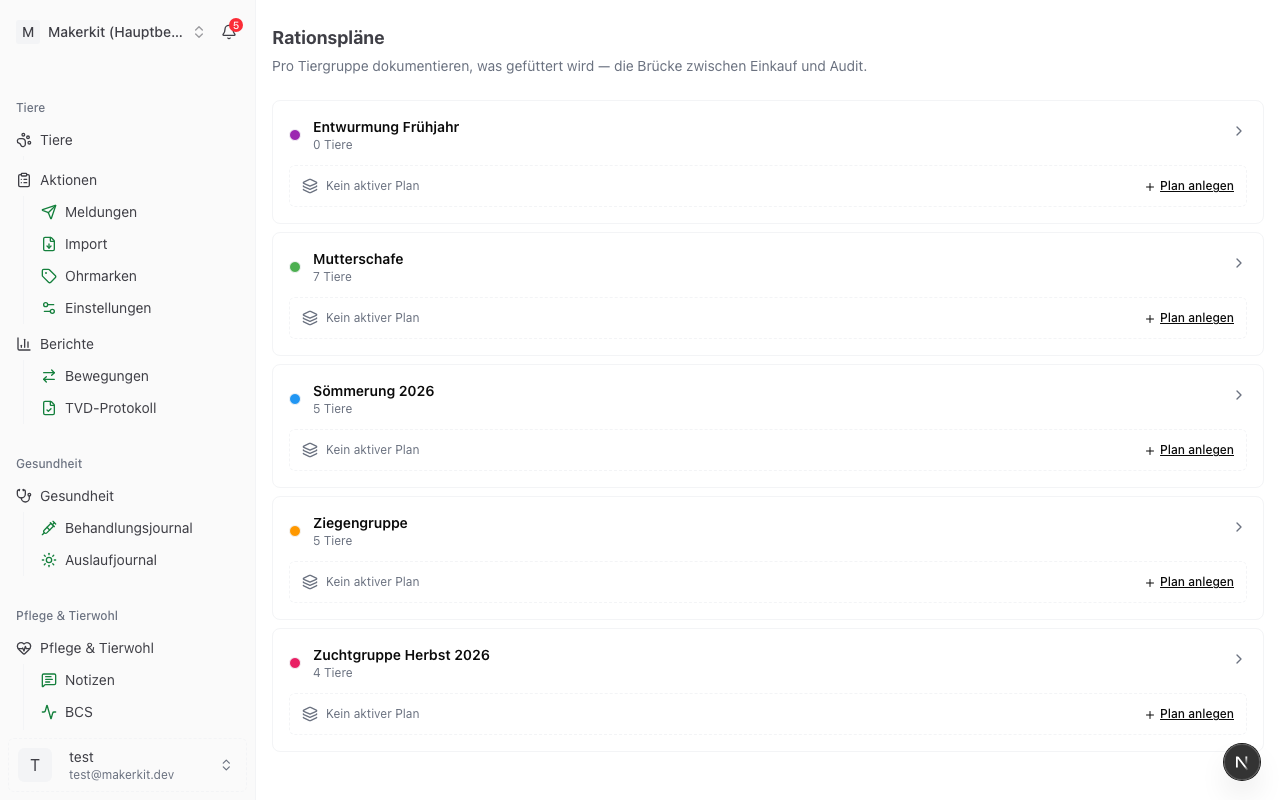
Ration plans connect your animal groups with the purchased feeds. For each group you maintain one active plan: which feeds are given in what quantity and how often? When the ration changes (e.g. switching from winter to summer feeding), you create a new plan — the old one is automatically closed.
You will find ration plans under Feeding > Ration Plans.
Overview per group
The overview page shows all animal groups on your farm with the currently active plan for each. For each group you see:
- Active plan — with start date and the included line items
- Previous plans — the history, collapsible at the tap of a button
- Quick action — start a new plan directly or edit the current one
Creating a new ration plan
- Select the desired group on the ration plan overview
- Tap New Plan
- Enter the start date (default: today)
- Optionally choose a name (e.g. "Summer feeding 2026")
- Add the individual line items:
One line item per feed
One line item per feed with:
- Feed (from master data)
- Daily quantity and unit — per animal or per group (switchable)
- Frequency — number of feedings per day (default: 1)
- Notes (optional) — e.g. "morning"
You can have as many line items per plan as needed. A typical ration for ewes might be: hay ad libitum + 200 g compound feed in the morning + mineral feed freely available.
- Tap Save plan
Copy from last plan
Seasonal rations often repeat. Use Copy from last plan to avoid re-entering everything:
- Tap Copy from last plan when creating a new plan
- Select the source plan from the history
- All line items are copied
- Adjust what has changed
- Save
Seamless succession when switching plans
When an active plan exists and you create a new one for the same group:
- The old plan is automatically closed on the day before the new start date
- Even if start date = today = last day of the old plan (same-day supersede)
- You see the succession as a preview before saving
This prevents any time gaps in the ration — important for the audit trail.
Tip: If you accidentally created a plan too early, you can edit it and adjust the start date. The preceding plan adjusts automatically.
Editing a plan
- Open the plan
- Tap Edit
- You can add, change, or remove line items
- Save
The start date can also be adjusted — but only if no overlap with other plans would result.
Closing a plan early
If you want to end a ration without immediately creating a successor (e.g. the group is disbanded):
- Open the plan
- Tap Close plan
- Enter the end date
- Confirm
Stock estimate
On the Feeding overview you will see a stock estimate: how many days your current feed stock will last given the active ration plans.
- Purchased quantities from the purchase journal are offset against the consumed quantities from ration plans
- Different units (kg, dt, t) are normalised automatically
- A notice appears for units that cannot be converted
- A colour indicator (green / yellow / red) signals whether restocking will soon be needed
Tip: The stock estimate is a projection, not an exact inventory count. It helps with order planning — but it does not replace a look in the barn.
Audit note
Ration plans are the key to the organic audit: they show what was actually fed — not just what was purchased. An organic inspection compares purchases, the plan, and animal numbers for plausibility. The Audit Export creates exactly this cross-check automatically.