Overview
All Swiss sheep, goat, and cattle keepers are required to report certain animal events to the livestock traffic database (TVD). With Herdy you create and submit these notifications in just a few steps — directly from the app, without going through agate.ch.
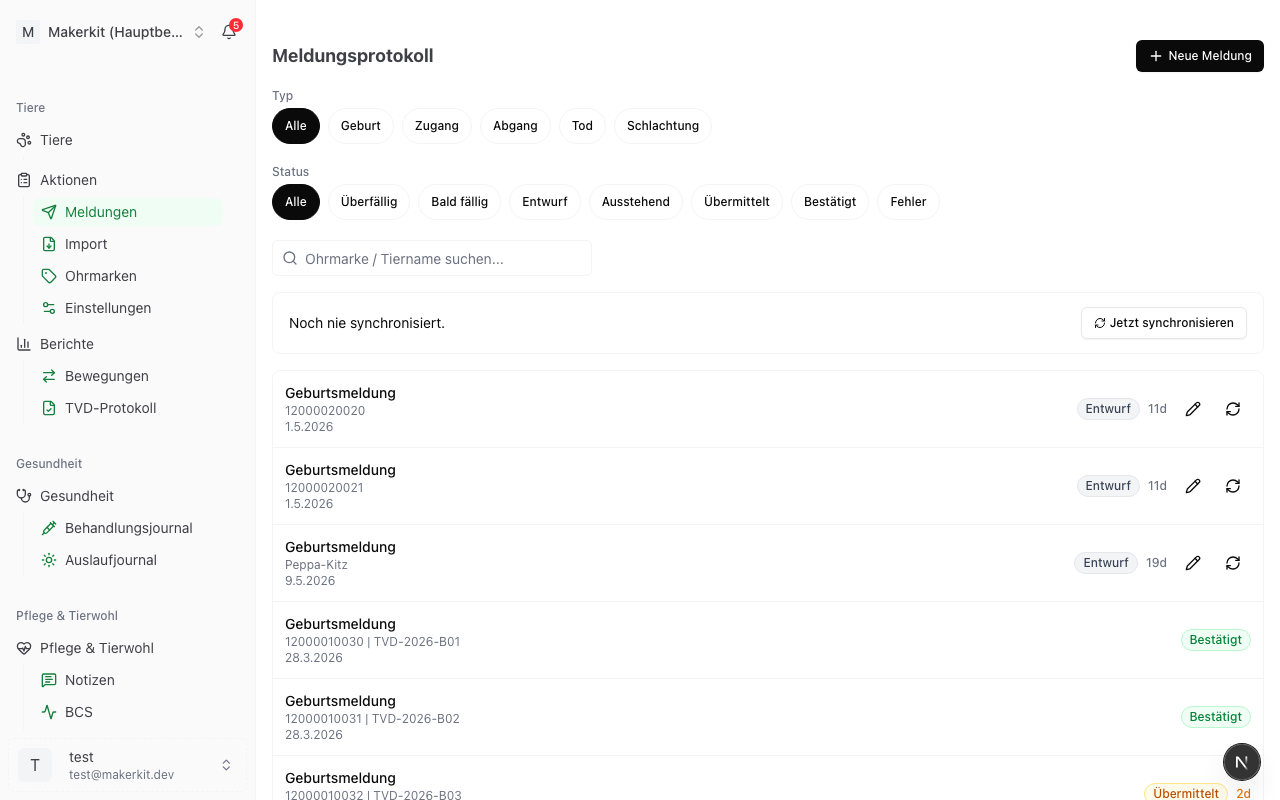
You reach the notification overview via TVD > Notifications in the main menu.
Notification types in detail
Birth notification
A birth notification is required when a lamb or kid is born on your farm.
- Click New Notification and select Birth Notification.
- Select the animal (the newborn) from your herd.
- Enter the event date (date of birth).
- Optional: Enter the litter size if it is a multiple birth (e.g. twins or triplets). This information is transmitted to the TVD.
- Optional: Enable stillbirth if the animal was born dead.
- Review the details and click Submit or Save as Draft.
Tip: When you record a birth in Herdy's breeding module, a birth notification is automatically created as a draft. You then only need to review and submit it. For multiple births the litter size is transferred automatically.
Arrival notification
An arrival notification is required when an animal comes to your farm — for example through purchase or return from alpine summering.
- Click New Notification and select Arrival Notification.
- Select the animal from your herd.
- Enter the event date (day of arrival on your farm).
- Enter the source farm TVD number. You can select a saved farm from the list or enter a new number (see Manage Partner Farms).
- Select the arrival reason:
- Purchase — You bought the animal.
- Return from alpine summering — The animal is returning from the alp.
- Review the details and click Submit or Save as Draft.
Departure notification
A departure notification is required when an animal leaves your farm — for example through sale or alpine summering.
- Click New Notification and select Departure Notification.
- Select the animal from your herd.
- Enter the event date (day of departure).
- Enter the destination farm TVD number. You can select a saved farm from the list or enter a new number (see Manage Partner Farms).
- Select the departure reason:
- Sale — You sold the animal.
- Alpine summering — The animal is going to the alp.
- Relocation — The animal is moving to another farm.
- Review the details and click Submit or Save as Draft.
Death notification
A death notification is required when an animal dies on your farm.
- Click New Notification and select Death Notification.
- Select the animal from your herd.
- Enter the event date (date of death).
- Select the cause of death:
- Natural — Old age or natural death.
- Accident — Injury, fall, or similar.
- Predator — Attack by wolf, lynx, or other predators.
- Disease — Death due to an illness.
- Unknown — The cause cannot be determined.
- Review the details and click Submit or Save as Draft.
Slaughter notification
A slaughter notification is required when an animal is slaughtered.
- Click New Notification and select Slaughter Notification.
- Select the animal from your herd.
- Enter the event date (date of slaughter).
- Enter the slaughterhouse TVD number. You can select a saved slaughterhouse from the list or enter a new number (see Manage Partner Farms).
- Review the details and click Submit or Save as Draft.
Withdrawal period warning for departures and slaughter
For a departure or slaughter notification, Herdy automatically checks whether the animal concerned has an active withdrawal period. If so, you receive a warning with the release date. You can still create the notification, but must consciously confirm the warning. This ensures that no animals with an ongoing withdrawal period inadvertently enter the food chain.
Creating a notification without an animal profile
You can also create departure, death, and slaughter notifications directly from the notification overview without first opening an animal profile. To do so, select the animal using the animal search function when creating the notification.
Understanding notification status
Every notification goes through various statuses:
| Status | Meaning |
|---|---|
| Draft | The notification is saved but has not yet been sent to the TVD. You can edit or delete it at any time. |
| Pending | The notification has been submitted and is being processed. |
| Submitted | The notification has been successfully sent to the TVD. |
| Confirmed | The TVD has accepted and confirmed the notification. |
| Cancelled | The notification was subsequently cancelled (see the "Cancelling notifications" section). |
| Error | The transmission failed. Herdy shows you the reason. |
Draft or submit immediately?
You have a choice with every notification:
- Submit — The notification is transmitted to the TVD immediately. Ideal when you are confident all details are correct.
- Save as Draft — The notification is saved but not yet sent. You can review it later and then submit it. Practical when you want to prepare several notifications at once.
Tip: Particularly when handling multiple notifications at once (e.g. after a busy lambing period), it is worth creating all of them as drafts first and then submitting them together.
Safety confirmations before submitting
For notifications with permanent consequences for an animal (death, slaughter, departure), Herdy shows a confirmation dialog before transmission. The dialog summarises the key details — animal, date, recipient farm, reason — and prevents accidental submission if the wrong type was selected in the dropdown.
Tip: If an animal must remain in your inventory after submitting (e.g. because you made a mistake), use the cancellation function — see below.
Duplicate protection
If Herdy detects an identical notification in the recent past (same animal, same type, same recipient, similar date), the second notification is blocked. This prevents accidental duplicate submissions that would lead to findings at the TVD.
If the notification should be sent despite the duplicate warning (e.g. because the TVD lost the original), explicitly check Send anyway and optionally enter a reason. This keeps a traceable record of why the notification was submitted twice.
Cancelling notifications
If a notification that has already been transmitted to the TVD was incorrect, you can cancel it within the cancellation window permitted by the TVD, directly in Herdy.
- Open the Notification Log (TVD > Notifications)
- Find the confirmed notification concerned
- Tap Cancel — the button only appears within the permitted cancellation window
- Confirm in the dialog with all relevant details
- Herdy transmits the cancellation to the TVD; the status changes to cancelled after successful cancellation
In the status history of the notification you can clearly see who triggered the cancellation and when.
Note: The cancellation window and the exact conditions are defined by the TVD and vary depending on the notification type. A notification that has already taken effect in the TVD (e.g. because it triggered a stock change at the recipient farm) may no longer be cancellable — in such cases the TVD returns an error.
Resending failed notifications
If a notification has the status Error, this is usually due to a temporary connection problem or invalid data.
- Open the notification in the notification overview.
- Herdy shows you the cause of the error (e.g. "Invalid TVD number" or "Connection error").
- Correct the details if necessary.
- Click Send Again.
Partner farms in notifications
For arrival, departure, and slaughter notifications you must provide the TVD number of another farm (source farm, destination farm, or slaughterhouse). Herdy offers you a convenient selection list of saved farms:
- Favourites — Farms you have marked as a favourite appear at the top.
- Recently used — Farms you have recently used in notifications.
- Others — All other saved farms.
You can search the list by TVD number or name. If the desired farm is not saved, click Enter new number and enter the TVD number directly.
Saving a farm after a notification
After successfully submitting a notification, Herdy asks whether you would like to save the farm used. In the save dialog you can:
- Assign a name (e.g. "Müller Farm" or "Bern Slaughterhouse").
- Choose a category (Farm, Slaughterhouse, Alp / Summering farm).
- Mark the farm as a favourite.
Saved farms are then available in all notification forms. You can manage, edit, and delete your saved farms under Master Data > Partner Farms.
Tip: Save farms with which you regularly exchange animals as favourites. That way you do not have to enter the TVD number again each time.
Deadlines and compliance warnings
The TVD requires notifications to be submitted within certain deadlines. Herdy helps you meet these deadlines:
- Red highlight — The deadline has passed. This notification is overdue and should be submitted immediately.
- Orange highlight — The deadline is approaching soon. Act promptly.
You see these indicators both in the notification overview and on the TVD dashboard.
Tip: Check the TVD overview in Herdy at least once a week. This ensures no notification is forgotten. Late notifications can result in findings during farm inspections.