Overview
The Purchase Journal is the core of the feeding module. Every feed purchase is recorded here, with date, quantity, supplier and, which is decisive for the inspection, the delivery note as a PDF or a photo.
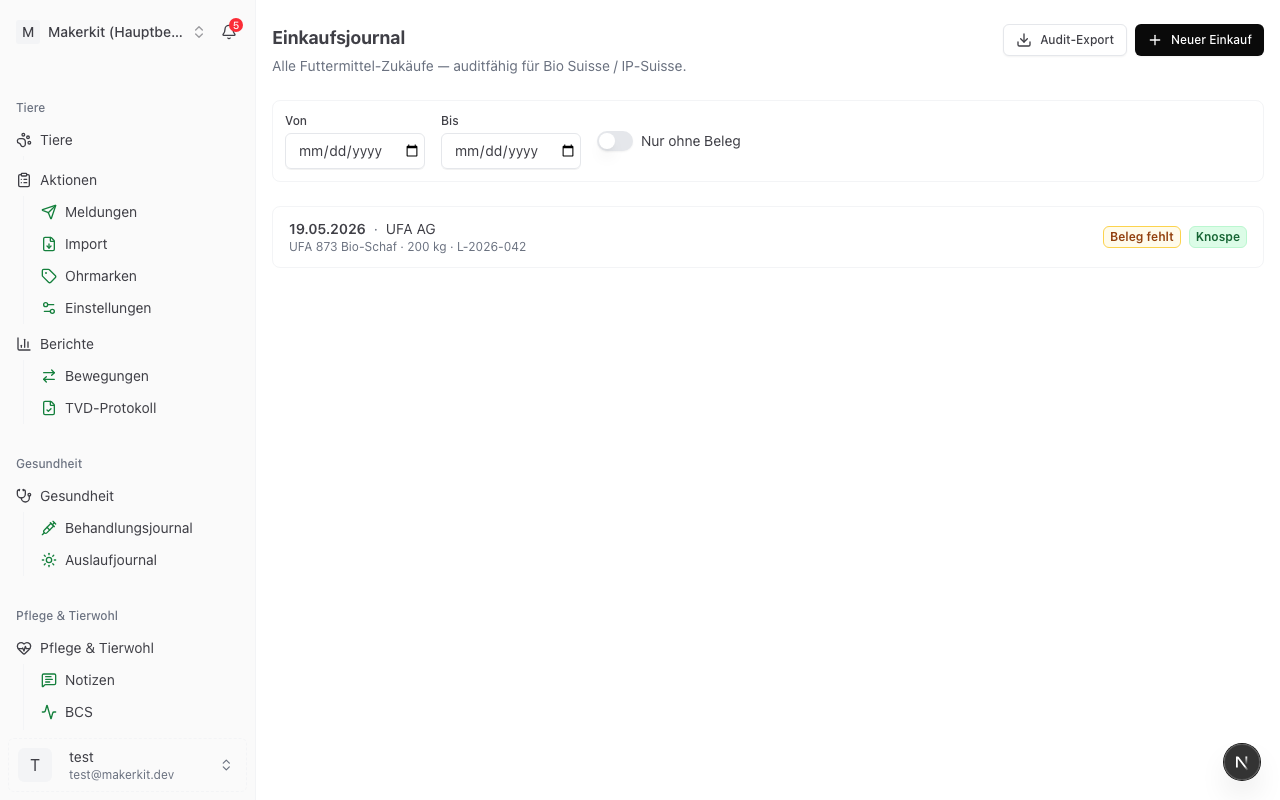
You find the journal under Feeding > Purchase Journal.
Prerequisite: The feed bought must be in the master data. As long as not a single one has been created, the form shows the message "Add a feed type first" instead of the fields. See Feed Master Data.
Recording a purchase
- Go to Feeding > Purchase Journal
- Tap New Purchase
- Fill in the fields
- Tap Save
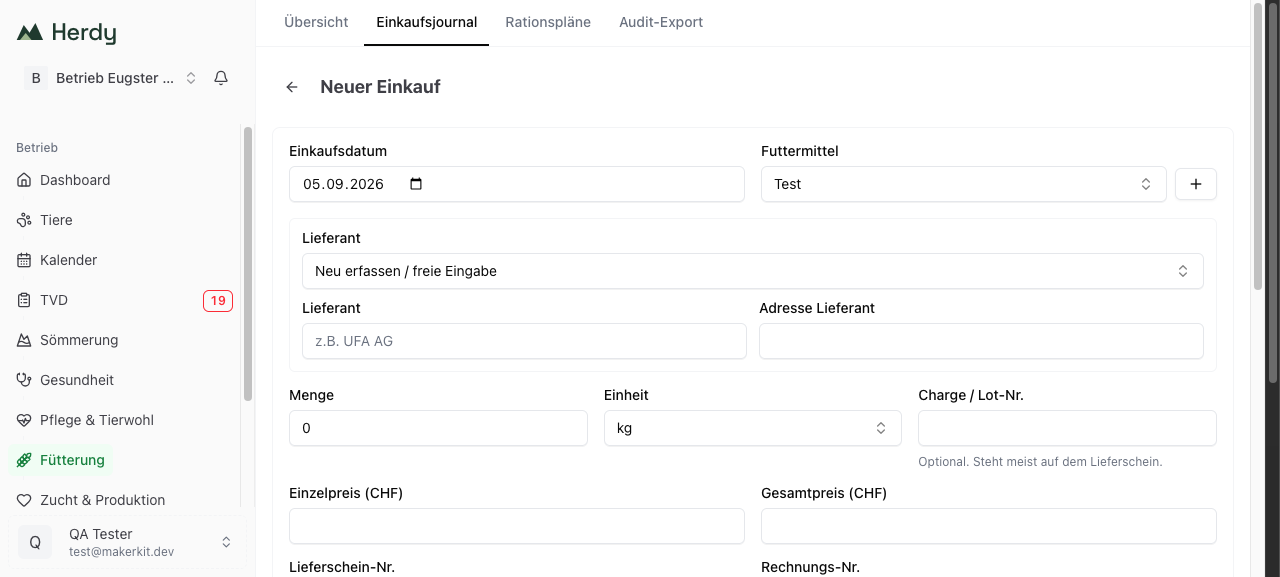
The fields
| Field | Comment |
|---|---|
| Purchase date | The delivery date, not the invoice date. Today is preset. |
| Feed | A choice from the master data |
| Supplier | A choice from the suppliers used so far or Add new / free entry |
| Supplier address | Free text, helpful for the inspection with direct purchases |
| Quantity and unit | kg, dt, t, units, Big-Bag or litres. The default unit of the feed is preset. |
| Batch / Lot no. | Usually stated on the delivery note. If it is missing, the audit export flags this. |
| Unit price and total price (CHF) | For your own costing, both optional |
| Delivery note no. and invoice no. | Document numbers of the supplier |
| Delivery note (PDF/photo) | The file itself, maximum 10 MB |
| GMO-free confirmed | Preset as ticked, with a choice of source |
| Certification override | Only fill in if this delivery differs from the master data |
| Note | Free text, for example "sample taken" or "stored in north barn" |
GMO confirmation
Next to the GMO-free confirmed checkbox you choose under GMO confirmation source what the confirmation is based on: Delivery note, Certificate, Supplier declaration or Other. The inspection asks exactly that: not only whether GMO-free is claimed, but where the statement comes from.
Certification override
Sometimes a single delivery differs from the standard of the feed, for example a conventional emergency purchase because the organic hay had run out.
- Under Certification override choose the actual status of this delivery
- Record the reason in the Note field
That keeps the audit trail clean: the master data stays unchanged, but for this one purchase the deviation is documented. The audit export shows the differing status.
Attaching the delivery note
Tap Delivery note (PDF/photo). On the phone the camera or the file picker opens, on the computer the file picker. PDF and image files up to 10 MB are allowed. The file is stored in the protected storage area of your farm and can only be viewed by its members.
Tip: Attach the delivery note right when recording the purchase. Otherwise Herdy keeps warning "Receipts missing" on the feeding overview.
The list
Every row shows the date and the supplier, underneath the feed and the quantity, on the right the certification and, where needed, the Receipt missing and Batch missing badges. Above the list sit three filters:
- From and To narrow down the period
- The Without receipt only switch shows the purchases without a delivery note, exactly the selection that the link on the overview page opens
Viewing, changing and deleting a purchase
A click on a row opens the detail page with supplier, address, feed, manufacturer, quantity, certification including any override, document numbers, GMO details and note. Underneath sits the receipt preview.
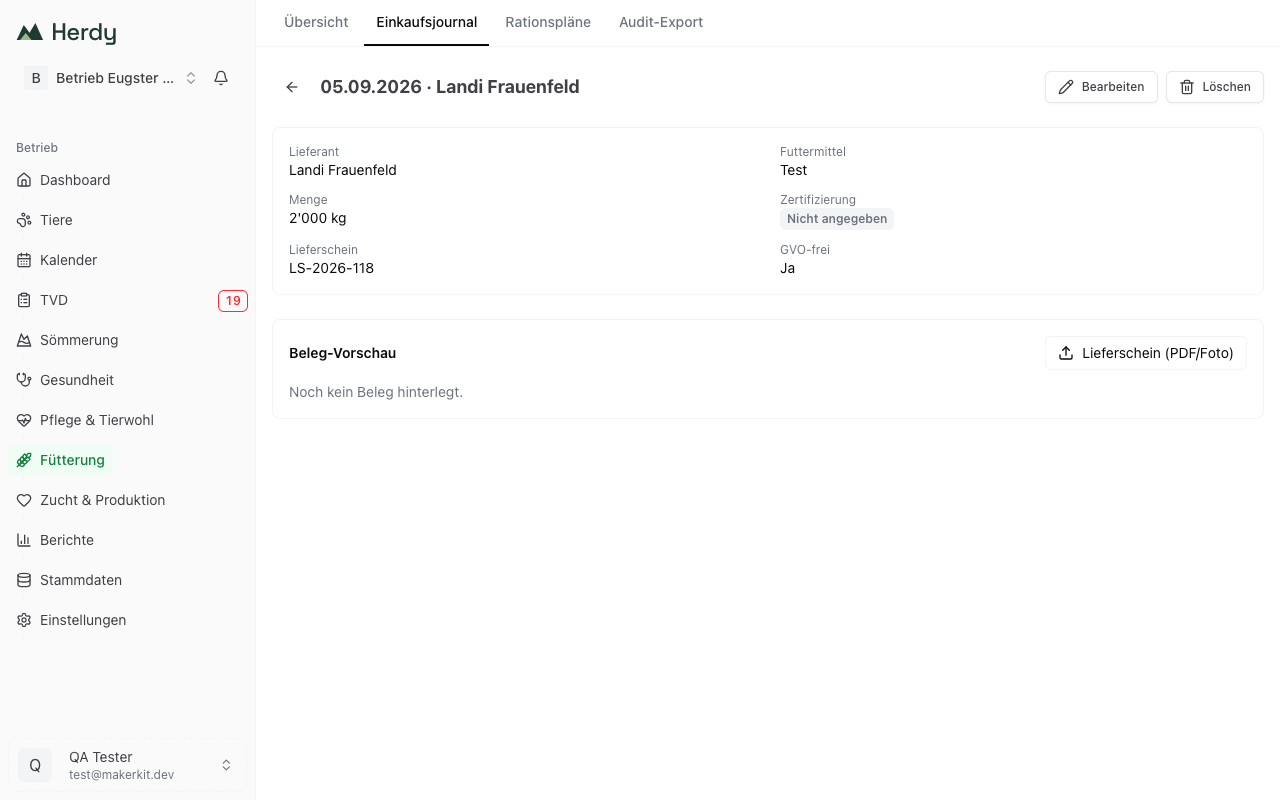
- Adding the delivery note later: on the detail page tap Delivery note (PDF/photo) and choose the file. If a receipt is already on file, you can open it or delete it with Remove receipt and attach a new one.
- Edit opens the same form with all values
- Delete removes the entry permanently, after a confirmation
Note: If you are subject to Bio Suisse inspection, you should correct a wrong entry rather than delete it. A deleted purchase also disappears from the audit export for past periods.
Export from the journal
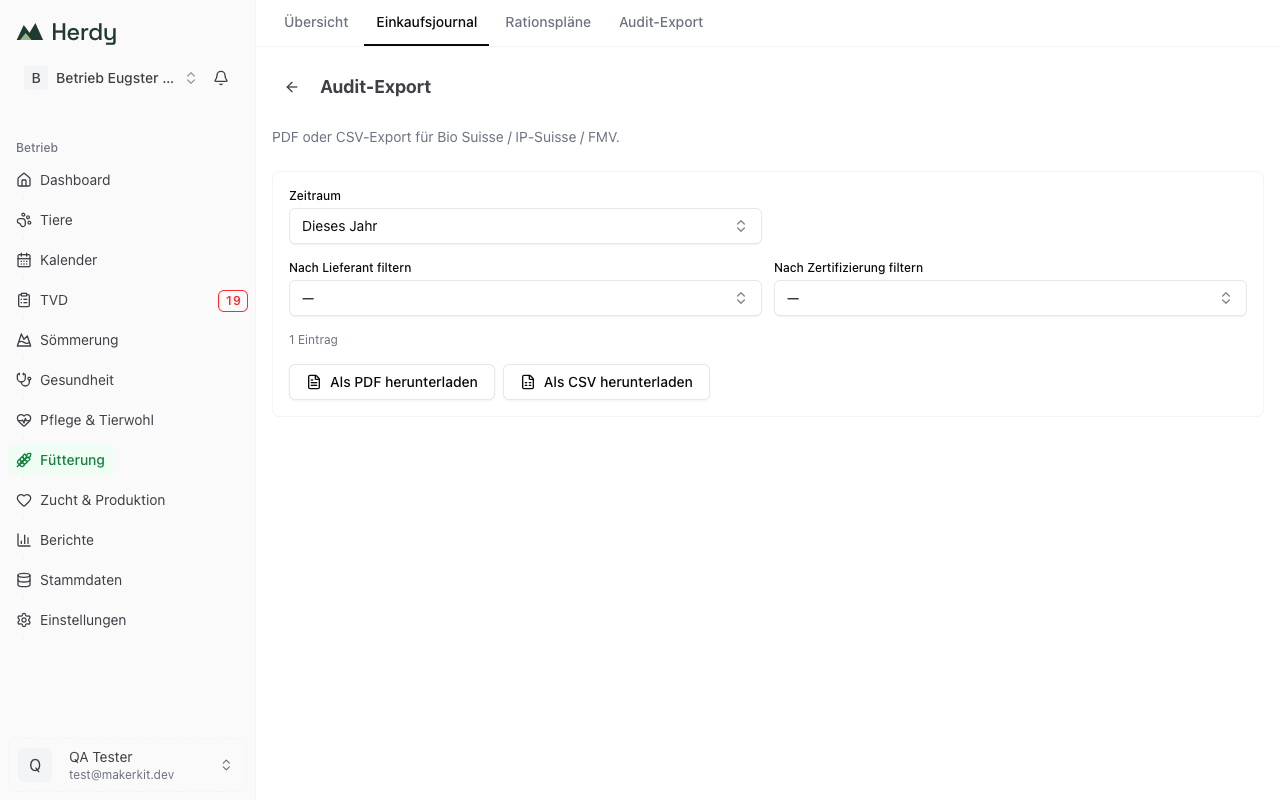
The Audit Export button at the top of the journal opens an export that contains the purchases only:
- Choose the Period: Last year, This year, Last 12 months, Last 3 years or a custom period with From and To
- Optional: Filter by supplier and Filter by certification
- Tap Download as PDF or Download as CSV
The PDF carries the title "Feed Purchase Journal" and lists the purchases in a table. The CSV file contains all columns in plain text, with a semicolon as the separator, so that Excel opens it directly. In both formats a missing batch or a missing receipt is marked as "missing".
For the complete inspection package including ration periods and plausibility check, use the Audit Export.
Suppliers
Suppliers are not kept as separate master data. Herdy suggests the names you have already used. The name entered stays with the purchase, even if you write a different one later. That way the export always shows the supplier as it was named at the time of the purchase.