Herdy can notify you directly on your device – just like an app from the app store. The message appears on your lock screen or as a banner, even when Herdy is not open. Tapping the notification takes you straight to the relevant page in Herdy.
You receive push notifications for:
- TVD notifications: a reminder before a reporting deadline expires, and an immediate alert when a submission to the TVD fails
- Breeding & births: upcoming births and due heat checks
- Care: open follow-ups and withdrawal periods ending today
- Summering: overdue alp returns
Important: Push notifications complement the email notifications, they do not replace them. You can switch both channels on and off independently.
Prerequisite: Herdy installed as an app
Push notifications work most reliably when Herdy is installed as an app (see the guide "Install Herdy as an app").
- iPhone and iPad: installation is required. Push only works in the Herdy app opened from the home screen, never in the Safari browser. You need iOS 16.4 or newer.
- Android: push works in the installed app and in Google Chrome.
- Computer: push works in the installed app and directly in Google Chrome. The browser must be running (it may be in the background).
Enabling
Herdy asks you by itself – for example after you have submitted your first TVD notification:
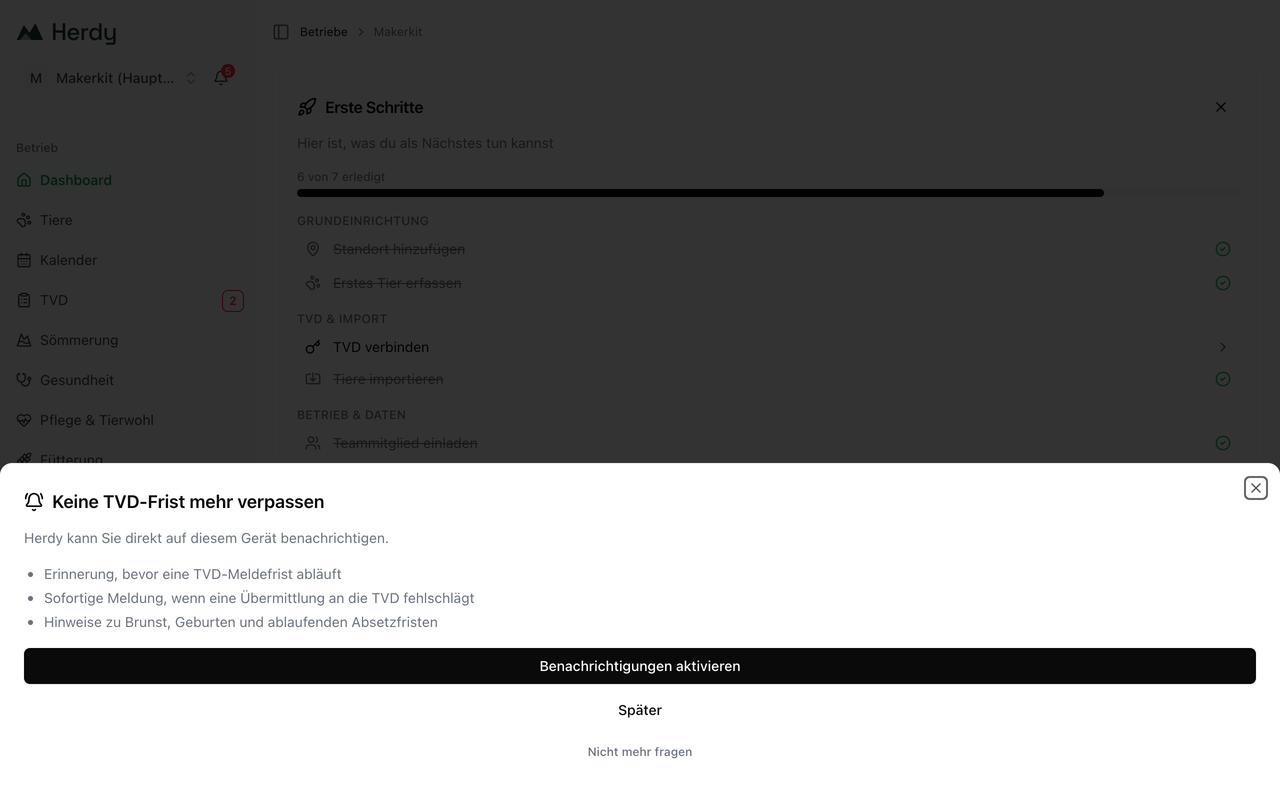
Tap Enable notifications and then confirm your device's question with Allow.
You can also enable push manually at any time:
- Open the account menu (bottom left on the computer, in the menu on your phone) and choose Profile.
- Scroll to the Notifications card.
- Under Push on this device, tap Enable and confirm with Allow.
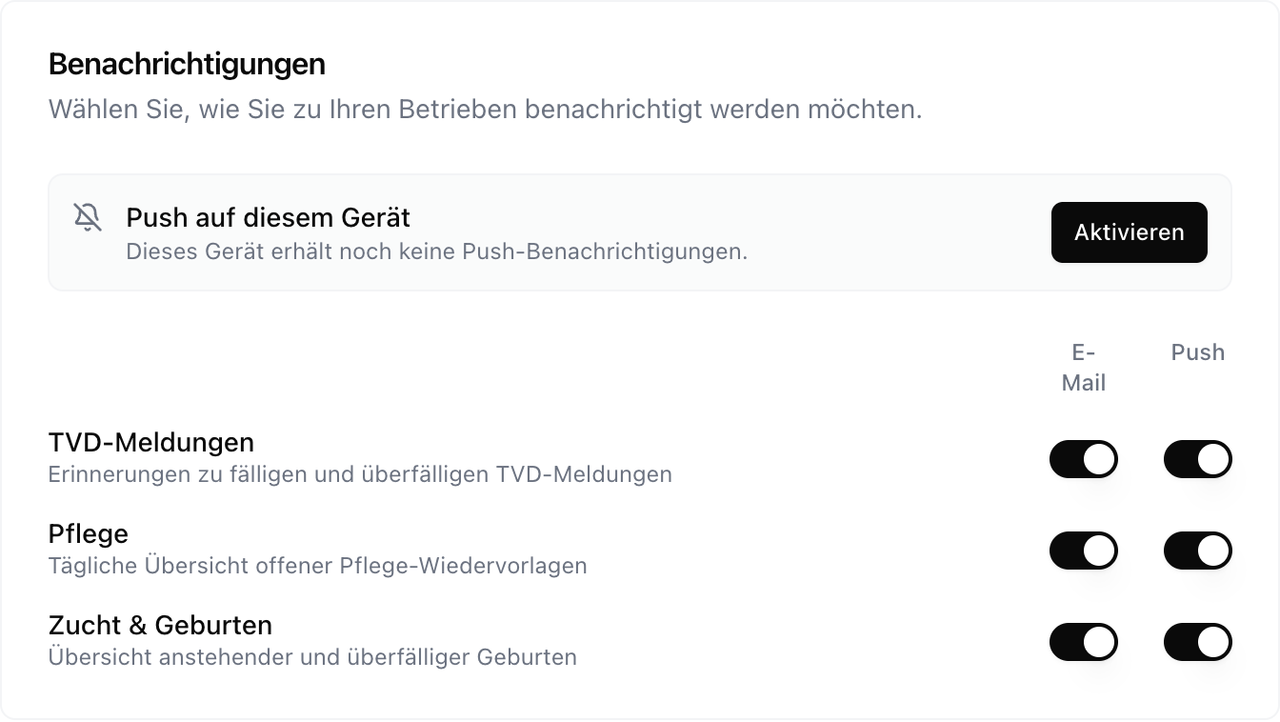
Note: Activation applies per device. If you use Herdy on your phone and on your computer, enable push on both devices separately.
Choosing what you receive
In the same Notifications card you decide per farm and per category whether you are notified by email, by push, by both channels or not at all. New members of a farm are subscribed to everything automatically and switch off what they do not need.
Disabling
- This device only: Profile → Notifications → Disable. Other devices and the emails are not affected.
- A single category: switch off the corresponding push toggle in the card – this then applies to all your devices.
If no notifications arrive
On iPhone or iPad
- Open Herdy via the home screen icon, not in Safari. On iOS, push only works in the installed app.
- Check Settings → Notifications → Herdy: "Allow notifications" must be switched on.
- Check whether a Focus (e.g. "Do Not Disturb") is active – it suppresses banners.
On the computer (Windows and Mac)
- The notification only appears while Google Chrome is running (a window may be in the background). Messages arriving while the browser is closed are delivered on the next start, as long as they are still current.
- Mac: check System Settings → Notifications → Google Chrome (or the "Herdy" entry): "Allow notifications" must be active and the style set to Banners or Alerts. Missed banners can be found in the Notification Center (click the clock in the top right).
- Windows: check Settings → System → Notifications to ensure Chrome may notify you, and whether Focus assist ("Do not disturb") is active.
Check in Herdy
- Open Profile → Notifications. Does it say "Active – this device receives push notifications"? If not, enable push again.
- If it says "Blocked in the browser", you declined the permission prompt. Allow notifications in your browser's site settings (Chrome: lock icon in the address bar → Notifications → Allow) and then enable push again in Herdy.
- Check that the push toggles of the desired category are switched on.
Still nothing?
Disable push in Herdy, enable it again right away and confirm the permission once more. If that does not help either, contact us at info@inoo.ch – including your device and browser.