The birth is one of the most important moments of the breeding year. In Herdy you record every detail in a single, clear form, and the young animals are created automatically as new animals in your herd.
During lambing season: if you record many litters a day, Lambing by scan is considerably faster. There you scan the dam and the lambs instead of filling in a form.
Recording a new birth
- Go to Breeding and choose the Births tab.
- Tap Record birth.
- Fill in the sections of the form (see below).
- Tap Save.
Tip: you can also record a birth straight from a mating. Tap Birth in the mating list; dam and sire are carried over.
The birth form in detail
The form is a single scrollable page, so you record everything in one go, even on the phone in the barn.
1. Dam (required)
Choose the female animal from your herd. The dam's species determines what the rest of the form looks like.
2. Sire (optional)
Choose the ram, buck or bull. If the birth is linked to a mating, the sire is carried over from there.
3. Associated mating (optional)
The list shows the open matings of that dam. Linking sets the mating status to Lambed.
4. Birth date (required)
Herdy proposes today.
5. Born alive / Stillborn
Enter the number of young animals born alive and stillborn. Together they make the litter size.
If you change Born alive, Herdy adjusts the number of offspring forms: increase it and empty forms appear, decrease it and the surplus ones at the end disappear.
Tip: enter the number born alive first, before filling in the details. That way the right number of forms is there from the start.
6. Birth ease
Document how the birth went. It is an important basis for later breeding decisions:
- Unassisted
- Easy pull
- Hard pull
- Veterinary
- Caesarean
For cattle this matches the Mutterkuh Schweiz scale (1 to 5).
Tip: record birth ease honestly. Over time this data shows you which lines lamb easily.
7. Mothering score
Rate the dam's behaviour on a scale of 1 to 5, from 1 - Very poor (barely cares for the young) to 5 - Very good (licks immediately, suckles without help). Dams with good scores rear their young more reliably.
8. Foster dam (optional)
If another dam takes over the rearing, enter her here. The dam already chosen is excluded from the list.
9. Lambs / Kids or Calves
Each animal born alive gets its own form, numbered "Lamb / Kid 1", "Lamb / Kid 2" and so on, or "Calf 1" for cattle.
- Sex: male or female
- Name: a call name
- Birth weight (kg): for example 3.5
- Ear tag: in the Swiss format, if already known. With a reader you can scan the tag straight into this field.
- Colour / Marking
The bin icon removes a single form; the Born alive count adjusts. Add another lamb / kid or Add another calf adds one.
Tip: the ear tag does not have to be entered right away. You can add it later on the animal profile. Until then the TVD notification stays incomplete.
10. Extra fields for cattle
If the dam is a cow, Herdy asks for the details the TVD requires for a cattle birth notification:
- Insemination date: required for cattle birth notifications. If the birth is linked to a mating, it is carried over.
- Sire ear tag: optional, if known
- Castrated at birth: per calf
- Request cattle passport: per calf
11. Notes (optional)
Room for anything special, for example "lamb had to be resuscitated".
What happens after saving
Young animals are created
Every young animal recorded as alive automatically becomes a new animal in your herd. You do not have to add it separately in the animal registry. Stillbirths count towards the litter size but get no animal.
Parentage is linked
Dam and sire are stored on the young animal's profile and appear immediately in the pedigree.
The mating status is updated
If the birth is linked to a mating, that mating then reads Lambed.
The TVD birth notification is prepared
Herdy creates a draft TVD birth notification. You find it under TVD → Notifications and send it from there, see Creating TVD notifications. A birth notification is due within 30 days.
For sheep and goats the whole litter is meant to go to the TVD as one notification. The litter size follows from the list of young animals reported: three separate notifications would be three litters of one lamb each for the TVD. Herdy enables this transmission mode centrally; until it is active, Herdy sends each birth as its own notification. Drafts and deadlines are unaffected and you do not have to set anything. For cattle it always stays one notification per calf.
On the notifications page the Send all open births button gathers every draft that is ready to send. Submission then continues on the server, even if you close the page or put the phone away.
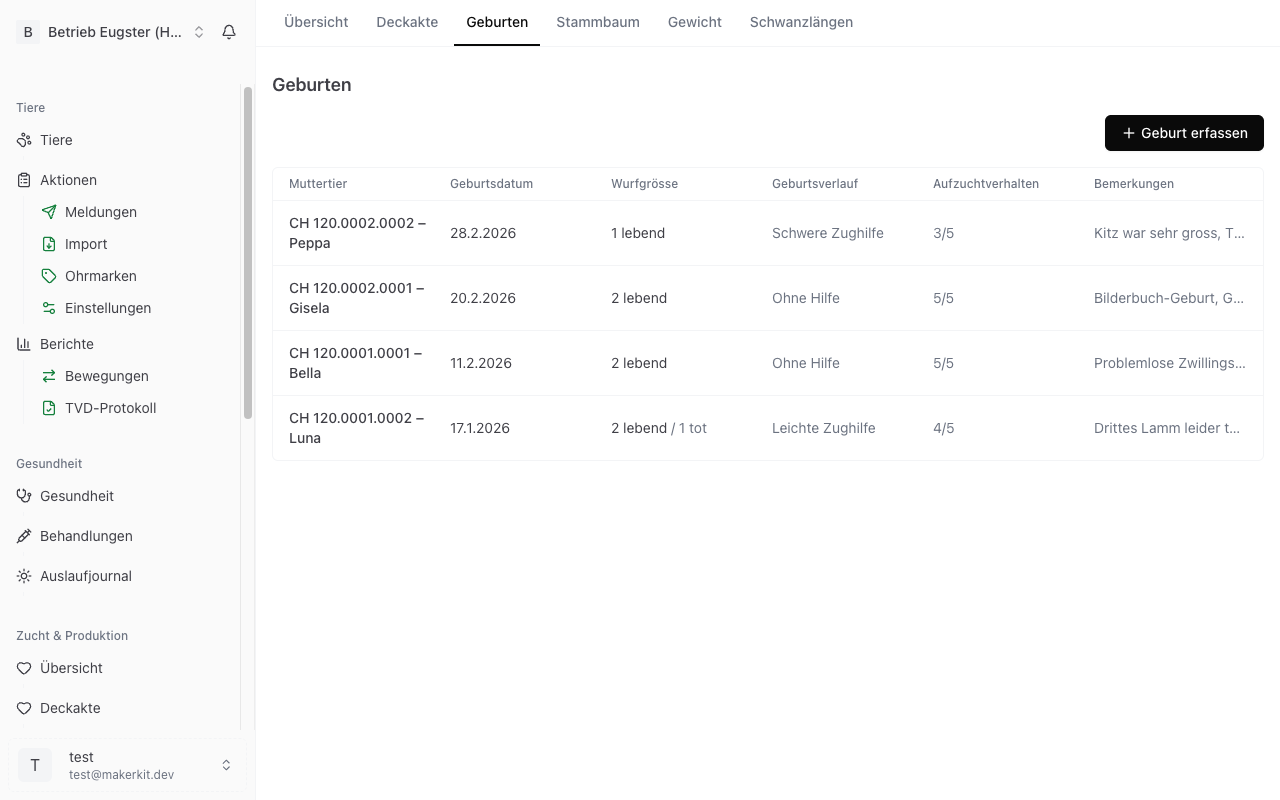
The birth list
Every recorded birth appears in the Births tab.
- The search field finds births by the dam's name or ear tag.
- The year filter defaults to the most recent year with births. All years shows the whole history.
- Below it sits the summary, for example "7 births · 13 live · 3 stillborn".
Each row shows dam, birth date, litter size (live and stillborn), birth ease, mothering score and notes. The TVD open badge marks births whose notification is still a draft.
The arrow on the right expands the details: sire, foster dam and the young animals with their ear tags. Tapping a young animal opens its profile.
Editing
Via the three-dot menu (⋯) and Edit you change birth ease, mothering score, foster dam and notes. Date, dam and litter counts are fixed, because the recorded offspring and the TVD notifications hang off them. If something is wrong there, delete the birth and record it again. Details of a young animal are changed directly on the animal.
Deleting
Delete birth in the three-dot menu first shows what depends on it: which offspring will be deleted, how many TVD drafts will be discarded, and that the associated mating will be reset to "Active". The action is final.
Two cases prevent deletion, and Herdy says so clearly:
- The TVD birth notification has already been submitted. Cancel the notification in the TVD section first.
- An offspring already has further records such as treatments, weights or other events.