Overview
Not every observation belongs in the treatment journal. Sometimes you only want to remember that an animal is limping, that a group is restless or that the fence on the home pasture is loose. That is exactly what notes are for. If you want, you attach a photo and set a date on which Herdy brings the note back up.
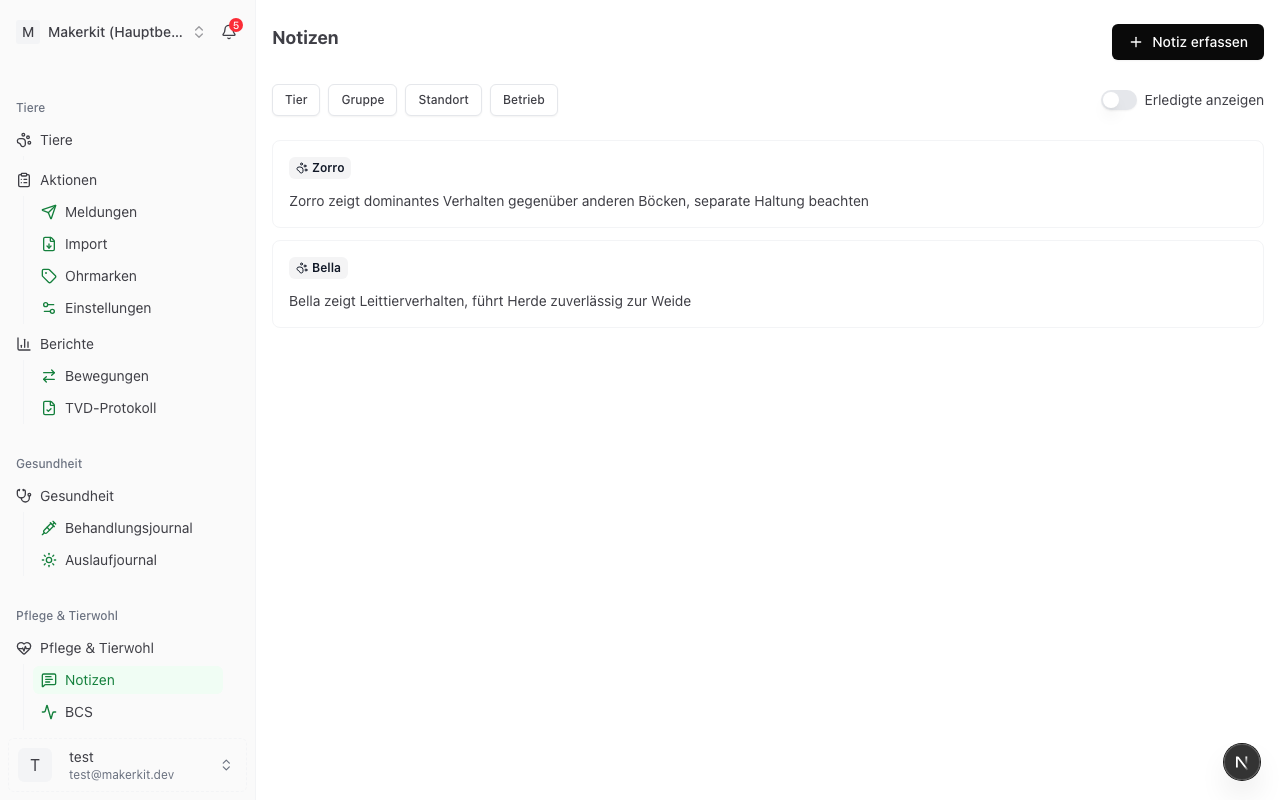
You find the notes under Care & Welfare > Notes.
Recording a note
- Go to Care & Welfare > Notes
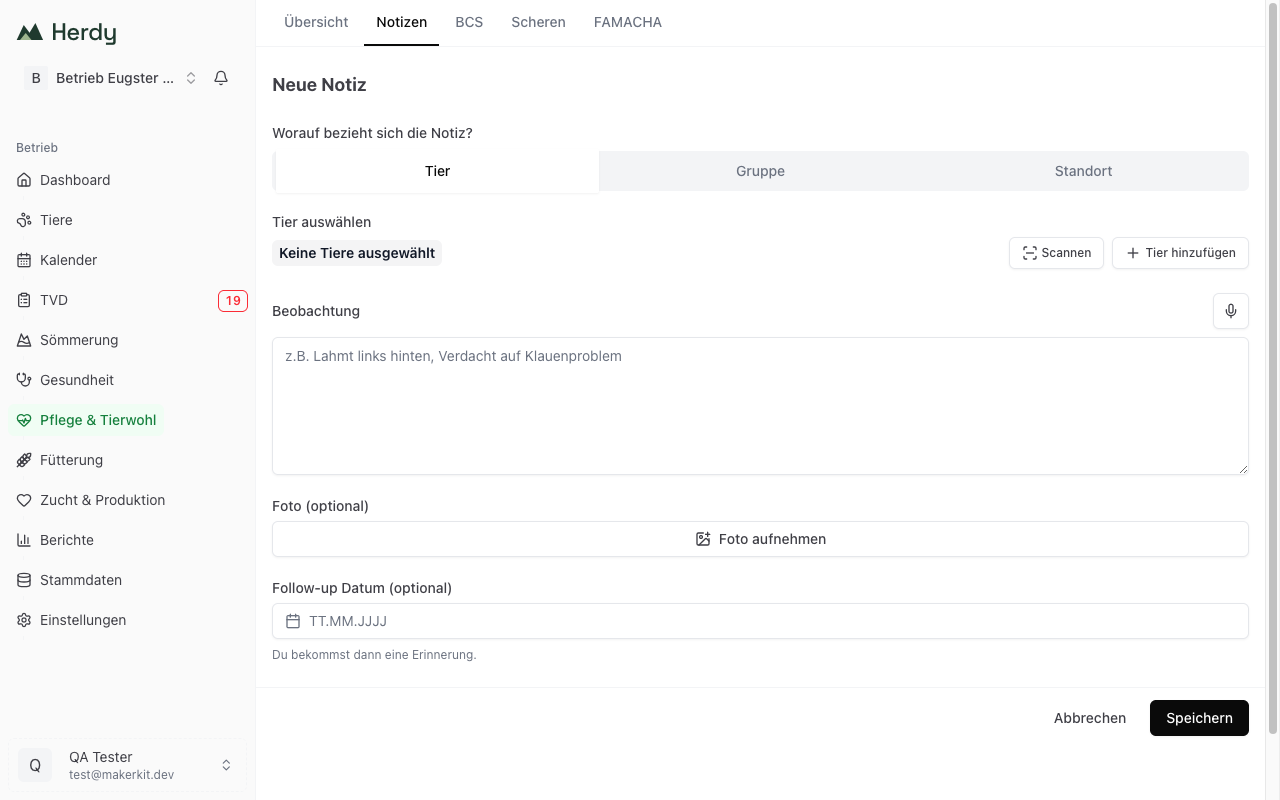
- Tap Add note
- Under What does this note refer to? choose the reference:
- Animal for one or several individual animals
- Group for a whole animal group
- Location for a barn or a pasture
- Select the specific animal, group or location
- Write your observation into the Observation field
- Optional: attach a photo and set a follow-up date
- Tap Save
Tip: On the animal profile there is a round button with a speech bubble at the bottom right. It opens a new note directly, with the animal already selected.
Several animals at once
With the reference Animal you can select several animals. Herdy then creates a separate note with the same text for each animal, so that the text appears in the history of every single animal.
- Add animal opens a search across names and ear tags
- Scan opens the reading window: every ear tag read is added to the selection until you end the scan
- A click on an animal already selected removes it again
This is worthwhile when the same observation applies to several animals, for example "check hooves at the next drive-through".
Taking a collection over from the scan tray. If you already read the animals somewhere else, they sit in the scan tray, the green button with the count at the bottom right. Tap Continue with … animals there and pick the target Note under "Where should these … animals go?". Herdy takes you to the notes; open a new note there and start Scan, and the collected group drops into the animal selection. See Reader for Electronic Ear Tags for details.
Dictating instead of typing
Next to the Observation field sits a microphone button. It only appears in browsers that support speech recognition, in practice Safari and Chrome.
- Tap the microphone
- Speak your observation
- The recognised text is appended to the field, then the recording stops by itself
- Correct the text if needed and dictate again for a further sentence
Speech recognition uses the language in which you operate Herdy.
Attaching a photo
A picture says more than a description, especially with injuries and skin changes.
- Tap Take photo
- On the phone the camera opens, on the computer the file picker
- The image appears as a small preview, the cross next to it removes it again
- Maximum file size: 10 MB
The photo is stored in the protected storage area of your farm and is visible only to its members. If the upload fails, Herdy still saves the note, then without the image.
Setting a follow-up
If the note needs an action later on, enter a Follow-up date. From that day on, the note appears at the top of the care overview under Open follow-ups and in the morning email. The date also appears in the farm calendar.
Filtering notes
Above the list sit four filter buttons, Animal, Group, Location and Farm. They can be switched on and off individually and combined. On the right, Show resolved adds the completed notes, which otherwise stay hidden.
Working through a note
Tap an entry in the list. On the detail page you see the reference, the recording date, the full text and any photo. Under Next step you find, depending on the note:
- Resolve marks the follow-up as completed. The button only appears on notes with a follow-up date. Reopen undoes this.
- Postpone moves the follow-up date back by +3 days, +1 week or +2 weeks
- Record treatment opens the treatment form in the health module with the animal from the note. The button only appears on notes about an animal.
Resolved notes are kept. They only disappear from the list of open follow-ups and from the default view.
Editing and deleting
At the top right of the detail page sit Edit and Delete.
- Edit opens the same form. When editing, it stays at one animal per note; the multiple selection only exists when recording.
- Delete removes the note permanently, after a confirmation. This action cannot be undone.
On the animal profile
Notes about an animal appear in the History tab of the animal profile, together with treatments, weighings and BCS values. At the next vet visit you therefore see at a glance what has been observed over weeks and months.