Groups are created and deleted under Master Data > Groups. This section explains how to create a group, what the group page offers and how to delete a group again.
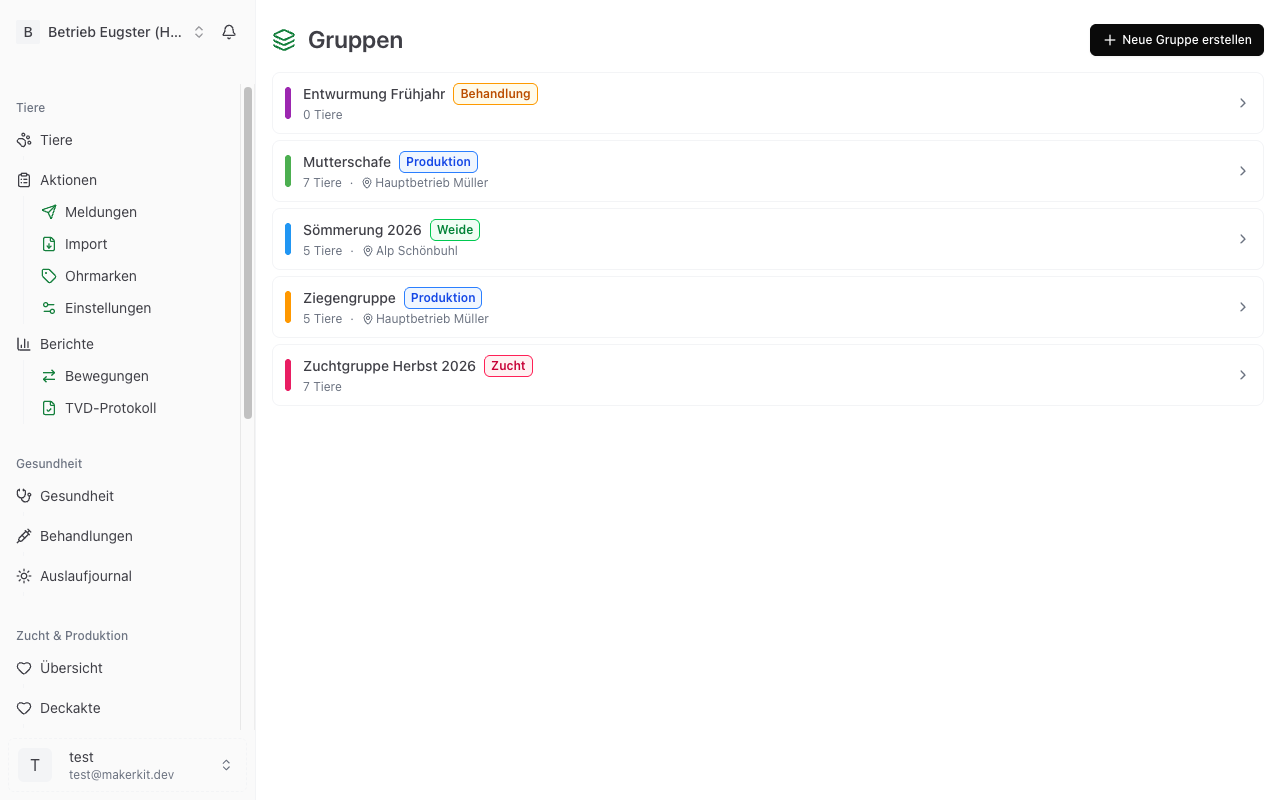
Creating a new group
- Open Master Data > Groups.
- Tap Create new group.
- Fill in the details:
- Group name: a meaningful name, for example "Breeding group Ram Bruno" or "Fattening lambs autumn 2026"
- Group type: tap Production, Breeding, Pasture or Treatment
- Description (optional): what exactly this group covers
- Location: appears only for the Pasture type. Choose the location this group stands on
- Colour: one of eight colours, for recognition in lists
- Tap Create group.
The group appears immediately in the group list, in the group view of the animal list and as a filter in the animal list.
Note: Name, type, description, location and colour cannot be changed after creation. Take a moment over the name. For seasonal groups the year belongs in it, so "Summering 2026" rather than "Summering".
Group types in detail
Production
For animals you keep for meat or milk production. Typical examples:
- "Fattening lambs spring 2026"
- "Dairy sheep"
- "Slaughter lambs autumn"
Breeding
For breeding animals used together. Typical examples:
- "Breeding group Ram Max"
- "Young sheep 2025 (replacement)"
- "Buck group"
Tip: Create a separate breeding group for each ram or buck with the dams assigned to him. Later you will know exactly which animals were mated together.
Pasture
For animals standing at a particular place. Only this type lets you record a location. It then appears on the group card, together with the location's TVD number if one is recorded. Typical examples:
- "Upper pasture"
- "Summering Alp Muster 2026"
- "Winter pasture valley"
Treatment
For animals that need or have had a particular treatment. Typical examples:
- "Deworming spring 2026"
- "Hoof trimming due"
- "Quarantine new arrivals"
Tip: Treatment groups are especially useful when a treatment runs over several days. Create the group, assign the animals concerned and remove them again after the treatment.
The group page
Tap a group in the group list. You see:
- The name, the group type badge, the number of animals and, if recorded, the location with its TVD number
- The description, if recorded
- Two bulk actions: Health event for group and Deworm group
- The Add animals button
- The list of members with ear tag, name, species, breed and status. Tapping one opens the animal profile; the cross on the right removes the animal from the group
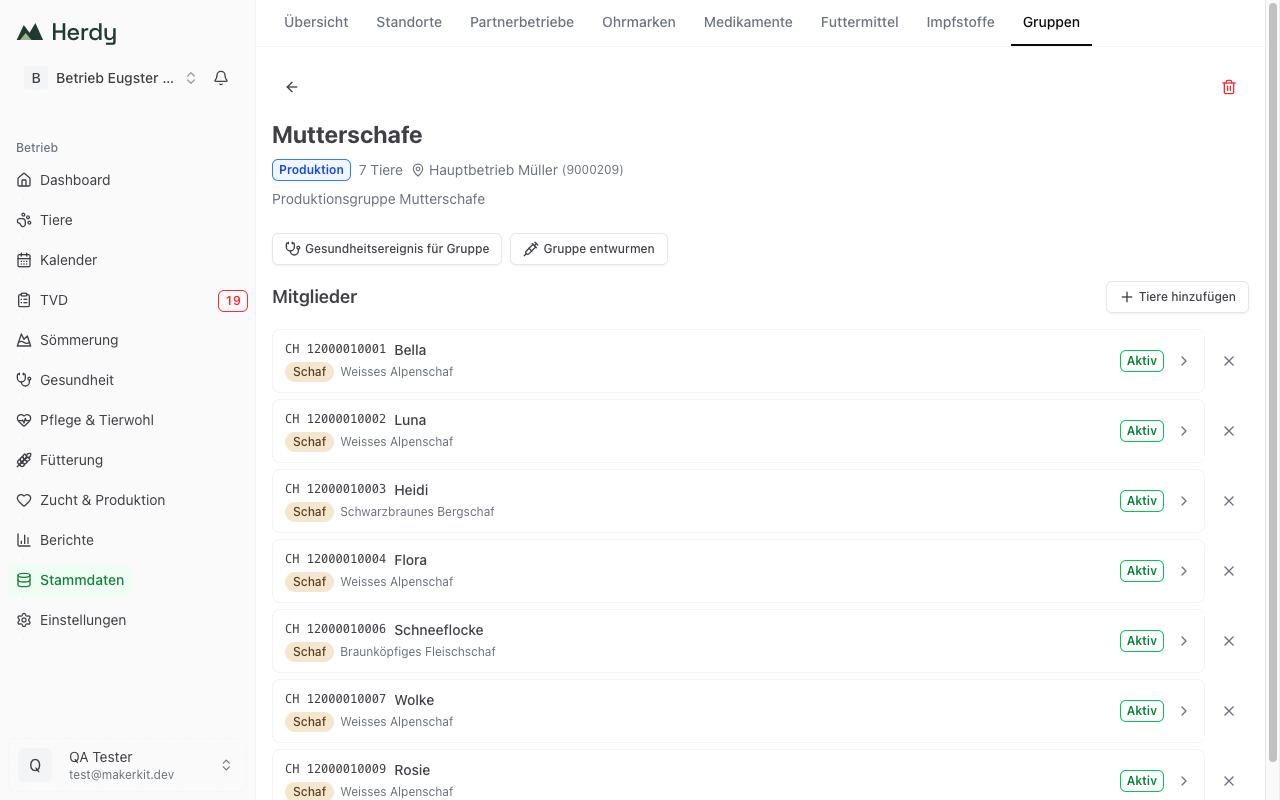
Deworm group first takes you to the deworming overview, filtered to this group. There you see how long ago the last treatment was for each animal before you record the new one. Health event for group, by contrast, opens the group treatment directly, see Recording treatments.
Using colours
Every group has a colour. It appears as a stripe on the group card and as a dot on each animal row in the animal list. There are no fixed rules; choose whatever is clearest for you.
Tip: For example green for pasture groups, red for treatment groups and blue for breeding groups. That way you see at a glance what kind of group you are looking at.
Deleting a group
- Open the group under Master Data > Groups.
- Tap the bin icon at the top right.
- Confirm in the dialog.
Deleting removes all animals from the group. The animals themselves stay untouched. The action cannot be undone.
Tips for a good group structure
- Meaningful names: the name has to be understandable without explanation, because it cannot be changed later. For seasonal groups, include the year.
- Not too many groups: only create what you really need. Too many groups make the list hard to read.
- Tidy up: remove animals from groups that no longer apply and delete finished groups.
- Pick the right type: for groups tied to a fixed place, Pasture is the right type, because only it can carry a location.