Overview
If you work with a reader for electronic ear tags, Herdy picks up the number automatically, on every page and without opening a scan window. It is much faster than the camera and the right choice when you record many animals in a row.
Herdy recognises ear tags from Switzerland, Germany, France, Italy, Austria and Liechtenstein.
Requirements
- A reader that explicitly supports HID keyboard mode. Bluetooth alone is not enough: devices that only offer the
SPPoriAPprofiles send no keystrokes and never reach Herdy. - A Bluetooth pairing with your phone or tablet, exactly as with a Bluetooth keyboard.
- On a computer it also works over USB, provided the device offers a USB HID keyboard mode.
Which animals can be scanned
| Species | Electronic ear tag | Scanning |
|---|---|---|
| Sheep | Mandatory since 2020 | Works for the whole flock |
| Goats | Voluntary | Only on animals with a chipped tag |
| Cattle | Not provided for | Read the barcode with the camera or enter the number by hand |
| Pigs | Not provided for | Enter the number by hand |
Devices in use in Switzerland
| Device | Bluetooth | HID smart (iPhone friendly) | Source |
|---|---|---|---|
| Allflex / Agrident AWR250, AWR300 | yes | yes | Identitas |
| Allflex / Agrident APR250, APR450, APR650 | yes | yes | Identitas |
| Gallagher HR0, HR4, HR5 | yes, hardware version V3 only | no | Hauptner |
| Datamars Tru-Test SRS2 / XRS2 | yes, from firmware 1.4.01 | no | LANDI / agrishop |
| Allflex / Agrident RS430 | yes, HID | not documented | Specialist trade |
| Allflex RS420 | yes, but SPP/iAP only | no | Specialist trade |
| Allflex LPR | yes, but SPP/iAP only | no | Specialist trade |
For iPhone and iPad we recommend a device with HID smart, that is Allflex or Agrident. Why, is explained further down.
On Gallagher HR4 and HR5 the HID mode is tied to the hardware generation: only version V3 devices have it, older ones cannot be upgraded. If your device shows no HID entry in its menu, it is an older version. The HR0 does HID.
RS420 and LPR do not work with Herdy over Bluetooth, because they only offer SPP and iAP. The RS420 can be used on a computer over USB in HID mode.
State of testing: the Allflex and Agrident details come from the manufacturers' manuals. An acceptance test with every model and firmware is still outstanding. After setting up, check one scan with a real electronic ear tag.
Setting the reader up
On the Allflex and Agrident devices sold by Identitas (APR250, APR450, APR650, AWR250, AWR300), Bluetooth is off from the factory and the profile is set to SPP. Four steps change that:
- Turn Bluetooth on:
Menu → Setup → Interface set up → Bluetooth → Set Bluetooth ModetoSlave Mode. From the factory it readsBluetooth OFF, so the device transmits nothing at all. «Slave» is right because your phone builds the connection, exactly as it does to a keyboard. - Choose the profile:
… → Bluetooth → Set BT ProfiletoHIDfor Android orHID smartfor iPhone and iPad. - Leave sending enabled:
… → Setup → Reader Settings → Set Online ModeatOnline Mode ON, output format atShort ASCII 15. Both are factory settings. WithoutOnline Mode ONthe device sends nothing after a read. - Pair: connect in the Bluetooth settings of your phone or tablet like a keyboard. If a code is requested, it is
1234from the factory.
The RS430 has a different menu. There, enable the virtual keyboard (HID) as described in the device manual. No HID smart is documented for that model.
If nothing works after a few quiet minutes: the Allflex and Agrident devices go to sleep after 60 seconds without communication and the display goes dark. Pressing ENTER wakes them.
After a print job on the device: printing drops the connection to the phone. Pair again afterwards.
Do not change the output format
Leave the reader on its factory format Short ASCII 15, found under Menu → Setup → Reader settings → Set Online Mode → Set Output Format. It sends the three-digit country code followed directly by the twelve-digit number. NLIS is equally safe, it only inserts a space between the two.
Other formats put padding characters in front of the number. Herdy still reads them correctly but loses a safeguard: it normally recognises a scan by the first three digits. With those pushed out of reach, only the typing speed decides, and on a slow reader the number can additionally be typed into an open form, complete with Enter.
Herdy warns you about this itself: the Scanner diagnostics page then shows an amber notice naming the detected format and the exact menu path to change it.
Why HID smart on iPhone and iPad
With the plain HID profile, iOS treats the reader as a permanently connected keyboard and hides the on-screen keyboard. You then cannot type anything by hand, anywhere in the app. HID smart connects only for the moment of the scan and releases the keyboard immediately afterwards.
And if the keyboard is missing anyway: once a reader has spoken, Herdy brings its own on-screen keyboard and a number pad on touch devices, with the note «Reader connected — iOS is hiding the keyboard». You close it with Close keyboard. On a computer it never appears, because there you have a real keyboard.
Below free-text fields you also see the note «No keyboard? iOS hides it while a reader is paired. Switch the reader off briefly and it comes back.»
How capture works
Once the reader is paired:
- Open Herdy on any page.
- Hold the reader to the ear tag and press the trigger.
- Herdy reacts according to the situation:
- An ear tag field is open, for example in the new-animal form or a TVD notification: the number goes straight into the field.
- You are in the animal list: Herdy opens the matching animal.
- You are in a recording session: the animal is added to the session.
- Otherwise: the animal goes into the scan tray and the counter at the bottom right increases.
The same tag is processed only once within two seconds. That swallows a device's continuous-read burst while still letting you deliberately rescan an animal.
Sounds and vibration
Herdy reports every scan audibly and by touch, so you do not have to look at the screen:
- One short high beep and a short buzz: scan accepted.
- Two low beeps and three short buzzes: scan rejected, for example because the form does not accept this animal.
- Two very short, very high blips: this tag is already in the current capture. Not an error, just a note that you scanned the same animal twice.
The sounds come from the browser. Do not set the device to silent if you want to rely on them.
The scan tray
If you scan while no field and no session claims the scan, Herdy collects the animals in the scan tray. A green button with the count appears at the bottom right. That is your proof every scan arrived, even with the phone in your pocket.
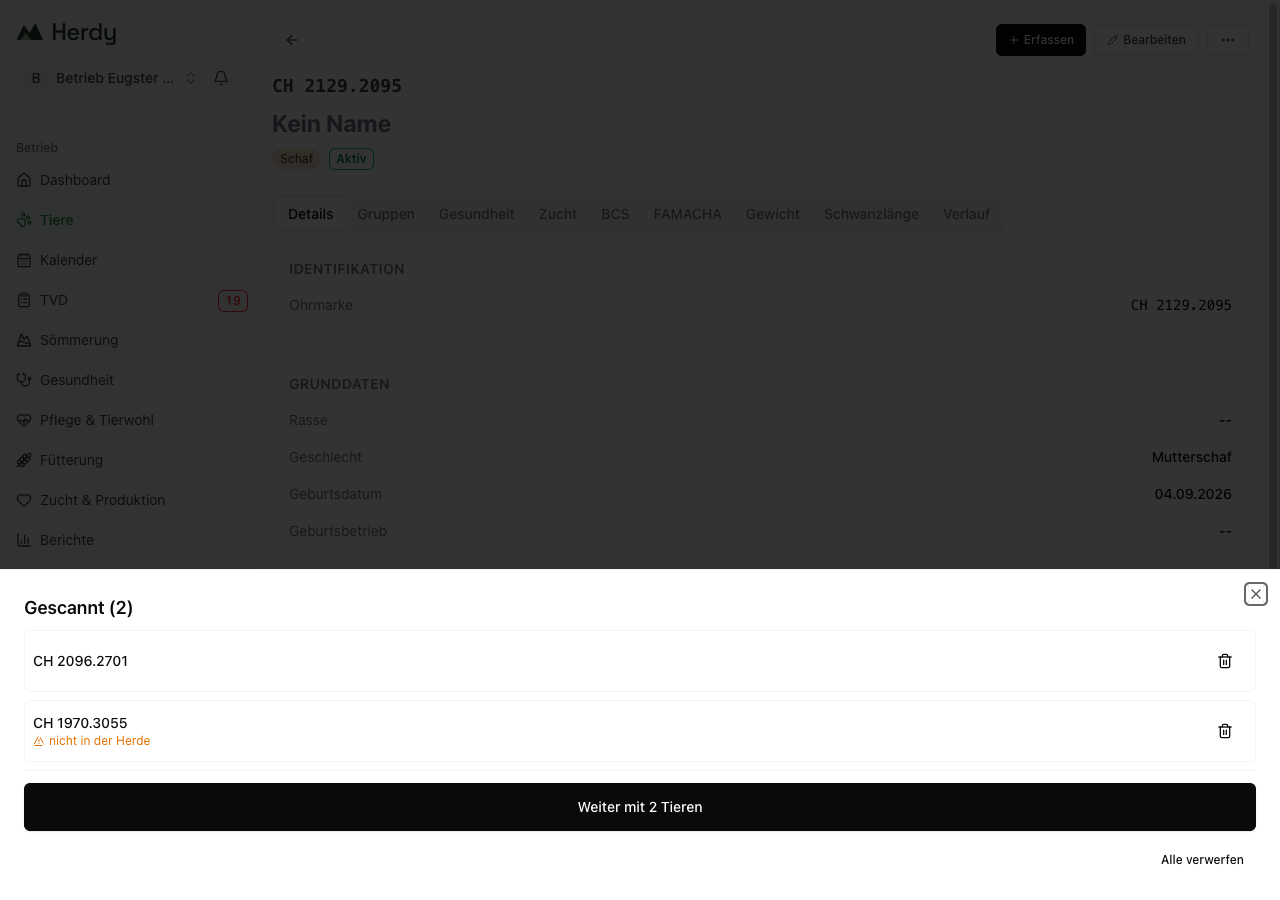
Tapping the counter opens the list Scanned (N). Each row shows the animal's name with the ear tag below it, or the ear tag alone if the animal has no name. Further notes:
- checking … while Herdy looks the animal up
- not in the herd if the tag belongs to no animal on your farm. That is not an error; the entry stays in the tray so the group remains complete.
In the list you can:
- tap a row to open the animal without losing the collection
- remove a row with the bin icon
- clear the whole collection with Discard all, with a confirmation
- hand the group to a job with Continue with N animals
With exactly one animal the tray additionally offers View animal, Record treatment, Record weight and Health event, or Register new animal if the tag is unknown.
Handing the group over
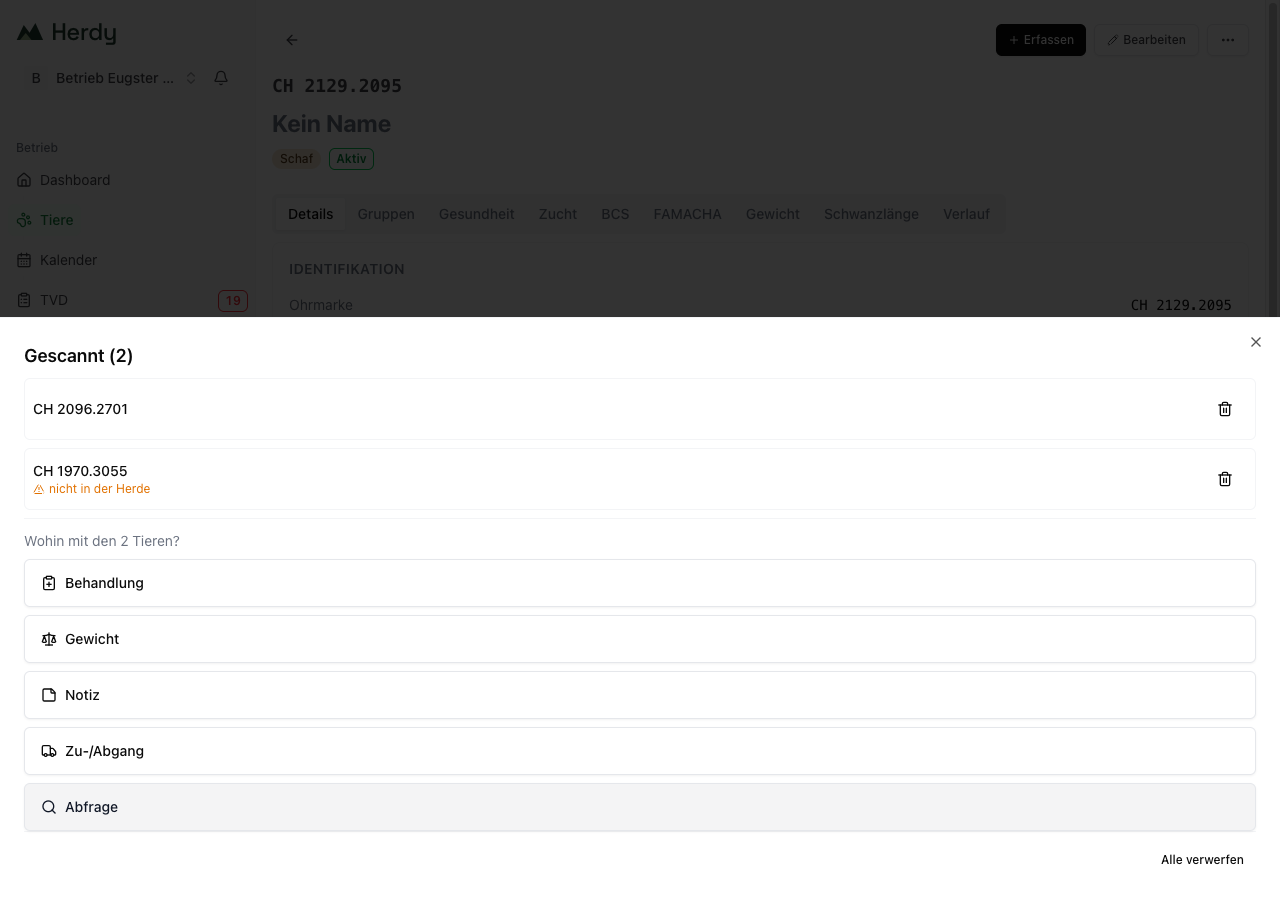
After Continue with N animals Herdy asks «Where should these N animals go?» and offers five targets:
- Treatment: batch treatment in the health module
- Weight: batch weighing in the breeding module
- Note: a note for several animals in the care module
- Arrival / departure: TVD arrival and departure notifications
- Query: query the animal data at the TVD, see TVD Lookup
The tray is only emptied once the target has actually taken the animals over. If you break off along the way, the collection survives.
Nothing happens by itself. From the scan tray Herdy files nothing with the TVD and saves no entry. A TVD notification is legally binding, and a scan is not consent to file one. Every target shows you the animals again and waits for your confirmation.
The tray survives a restart. If the app is closed in the background, which happens quickly on an iPhone, Herdy asks the next time you open it «Unfinished scan collection from HH:MM with N animals» and offers Continue or Discard. Collections older than a day are no longer offered.
Reader and scale at the same time
That is not possible. In HID mode the reader can connect to only one device. This applies to Gallagher as well as Datamars and Tru-Test: while HID is active, your scale receives no numbers. Set the reader back when you want to weigh again.
Compared with the camera
- Reader: the fastest capture. No light needed, no trouble with dirty tags.
- Camera: the stand-in when no reader is at hand or the tag has no chip, as with cattle. See Scan Ear Tag.
The two can be combined freely.
How to work with the reader during lambing is described under Lambing by scan.
The «Scanner diagnostics» page
When a reader does not do what it should, there is a page that logs every keystroke it receives. It is deliberately not linked and is opened by address: your farm's address with /settings/scanner-debug appended.
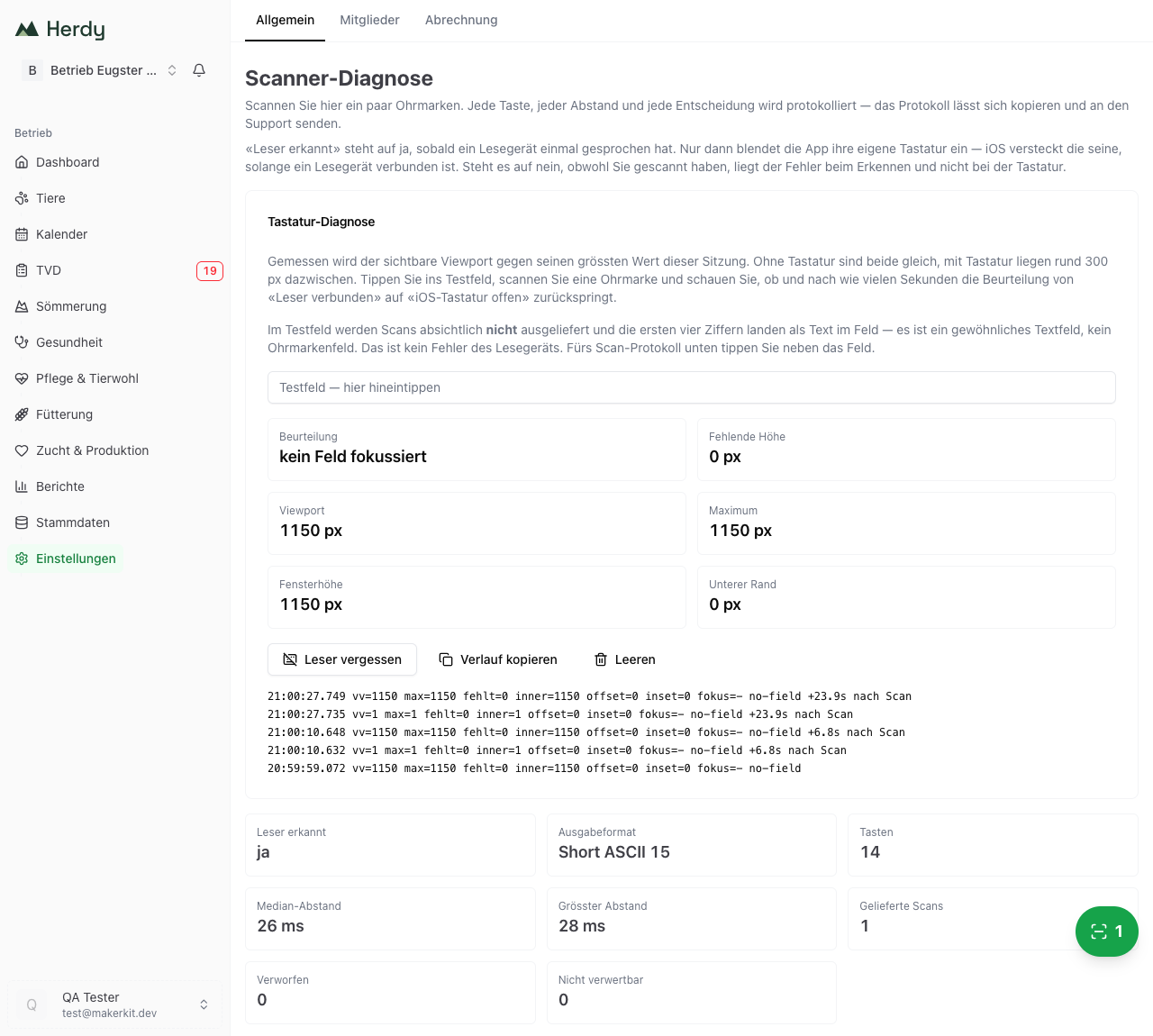
The page shows:
- Reader detected: reads «yes» as soon as a reader has spoken once. If it reads «no» although you scanned, the fault is in the recognition and not in the keyboard.
- Output format: which format the device is currently sending. On an unsuitable format the amber notice with the menu path appears above.
- Keys, Median gap and Largest gap: how fast the device types.
- Delivered scans, Discarded and Unusable: what Herdy did with the input.
- Keyboard diagnostics: measures whether and when the iOS on-screen keyboard comes back.
- The log with every single key, every gap and the reason a scan was not accepted.
Copy log puts the text on the clipboard so you can send it to info@herdy.ch.
The test field on this page is an ordinary text field. Scans are deliberately not delivered there, and the first digits land in the field as text. For the log, tap next to the field.
Troubleshooting
| Problem | Solution |
|---|---|
| Nothing happens when scanning | Bluetooth is probably still OFF or the profile still SPP. Set the mode to Slave Mode and the profile to HID or HID smart. |
| The device was connected a moment ago, now it is not | After 60 seconds without communication the reader sleeps. Wake it with ENTER. |
| The number lands in the wrong field | Another input field has the focus. Tap a neutral spot on the page and scan again. |
| The number is additionally typed into the form | The reader's output format puts padding in front of the number. Switch to Short ASCII 15. |
| The on-screen keyboard no longer appears on iPhone or iPad | The reader is connected with the plain HID profile. Switch to HID smart or use Herdy's own keyboard. |
| Two very short high beeps sound | This tag is already captured. Not an error. |
| RS420 or LPR is paired but Herdy does not react | Over Bluetooth these devices only send SPP and iAP, not HID. Use an HID-capable reader, or the RS420 on a computer over USB. |
| Gallagher HR4 or HR5 shows no HID in the menu | It is a version V1 or V2 device. HID exists only from hardware version V3; a firmware update does not help. |
| A cattle ear tag is not recognised | Swiss cattle ear tags contain no chip. Read the barcode with the camera or enter the number by hand. |
| Still nothing happens | Open /settings/scanner-debug, scan, tap Copy log and send it to info@herdy.ch. |