At a glance
Herdy is organised into modules. Each module is a workspace with its own landing page and, below it, a tab strip for its subpages. You reach every module in one click, wherever you are.
The app adapts to your device: on a computer you navigate through the sidebar on the left, on a phone through the bar at the bottom of the screen and the More page.
Which modules you see depends on three things: your role on the farm, the species the farm keeps, and which modules the farm has hidden in its farm profile.
The modules
- Animals: your animal list with search, filters and the animal profiles
- Calendar: every dated entry from breeding, health, care and feeding in one view
- TVD: notifications to the livestock traffic database, batch notifications, queries, import, ear tags and the TVD settings
- Summer pasture: alp seasons, requests, handovers and events. This module is unlocked per farm
- Health: treatment journal, deworming, foot rot, medications and the exercise log
- Care & Welfare: notes with follow-ups, body condition (BCS), shearing and FAMACHA
- Feeding: feed purchases, ration plans and the audit export
- Breeding & Production: heats, matings, births, pedigree, weights, tail lengths, mating seasons and analyses
- Reports: movement history, TVD notification log, weight and breeding analyses
- Master Data: locations, partner farms, ear tags, medications, vaccines, feed and groups
- Settings: farm settings, members and billing
Shearing and FAMACHA only appear for sheep and goats, foot rot only for sheep, and the pig notification only for pigs.
Navigation on a computer
The sidebar on the left shows Dashboard at the top and all modules below it in the order above. A red counter on the TVD module shows how many notifications are overdue. A counter on Care & Welfare shows open follow-ups.
Within a module you switch between subpages using the tab strip at the top.
Above your name at the bottom left you open the profile menu with your personal profile and the sign-out. At the top left you switch between your farms via the farm name.
Navigation on a phone
At the bottom of the screen you see five entries. Overview (the dashboard) sits in the middle, with the three most important modules of your farm to its left and right, usually Animals, TVD and Health. More sits on the far right.
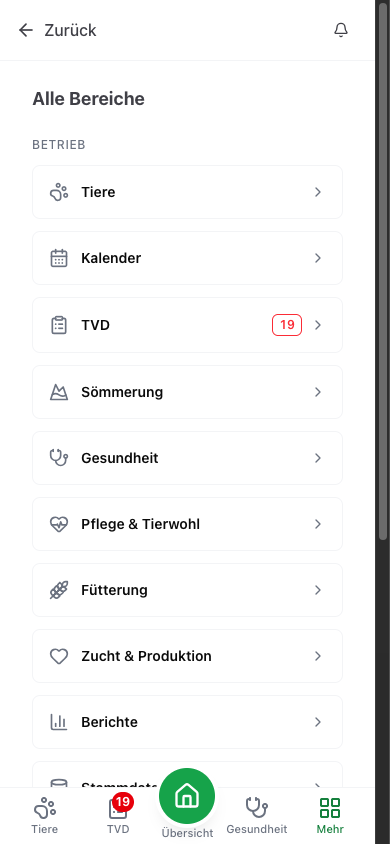
The More page is the full directory. It has two sections:
- Farm: every module you may see, with the same counters as the sidebar. If your farm has hidden modules, they appear below under Hidden modules and can be brought back with Show.
- Account: your profile, Switch farm, the Language and Sign out.
Tip: No module is out of reach on a phone. Whatever does not fit into the bottom bar sits on More, and the counters of those modules are summed up on the More entry.
Changing the language
Herdy speaks German, French, Italian and English.
- On a phone: More page → Account section → Language
- On a computer: profile menu → Profile → Language card
- Before signing in: the DE, EN, FR, IT buttons at the bottom of the sign-in page
Your choice applies to the app and to the emails Herdy sends you.
The dashboard
After signing in you land on your farm's dashboard.
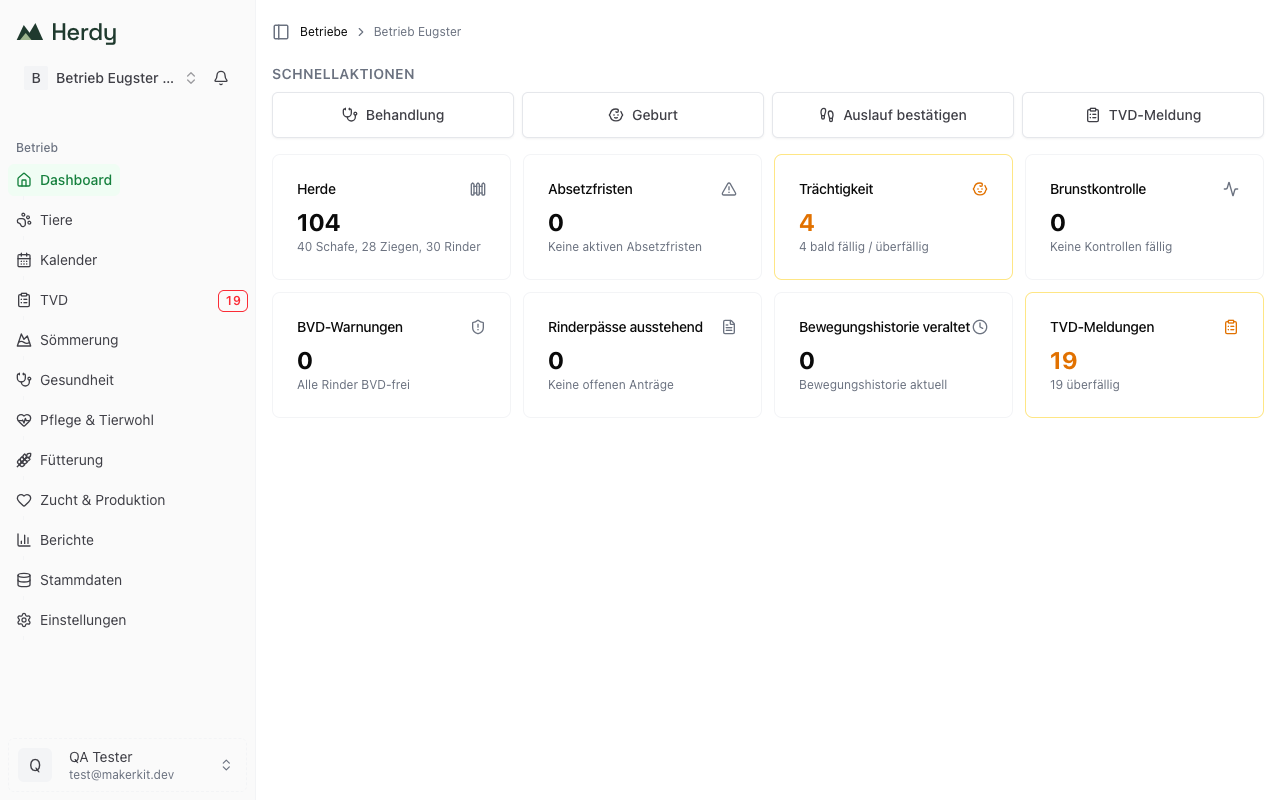
Quick actions
At the top sit up to four quick actions for the most common tasks. Which ones you see depends on your modules and species:
- Treatment: record a treatment
- Scan lambing: record the lambs of a lambing in one go (only on farms without cattle)
- Birth: record a single birth
- Confirm exercise: confirm the exercise in the exercise log
- TVD notification: create a new notification to the TVD (preferred on cattle farms)
- Note: record a care note
- Add animal: create a single animal
Cards
Below that, cards show the state of your farm. An amber or red card means something needs doing. A click takes you straight to the matching area.
- Herd: number of animals, split by species
- Withdrawal periods: active withdrawal periods from treatments
- Gestation: animals due soon or overdue
- Heat control: checks that are due
- TVD notifications: overdue notifications
If your farm keeps cattle, three more cards appear:
- BVD warnings: cattle with a suspect or positive result
- Cattle passports pending: applications in progress
- Movement history stale: cattle not synchronised with the TVD for over 30 days
If summer pasture is unlocked and a season is running, an additional summering card appears.
The tour
On your first visit a short tour walks you through the dashboard and the navigation. You can end it at any time. Afterwards Herdy shows the Getting started card with a checklist: add location, connect TVD, import animals, choose a plan, invite a team member and more. Dismiss removes the card.
Switching between farms
You can run several farms or be a member of several farms.
- On a computer: click the farm name at the top left of the sidebar and pick the farm you want
- On a phone: More page → Switch farm
- Via Farms in the breadcrumb, or at
/dashboard, you see all your farms with their animal counts
Hiding and showing modules
If your farm does not need a module, the farm owner can hide it. How to do that is described under Farm settings.
Animals, Calendar, TVD, Master Data and Settings cannot be hidden. For the TVD that is deliberate: the reporting deadlines are a legal requirement.
Finding help
You can reach this documentation at any time through the Documentation section of the Herdy website. Each section explains one area step by step.