Overview
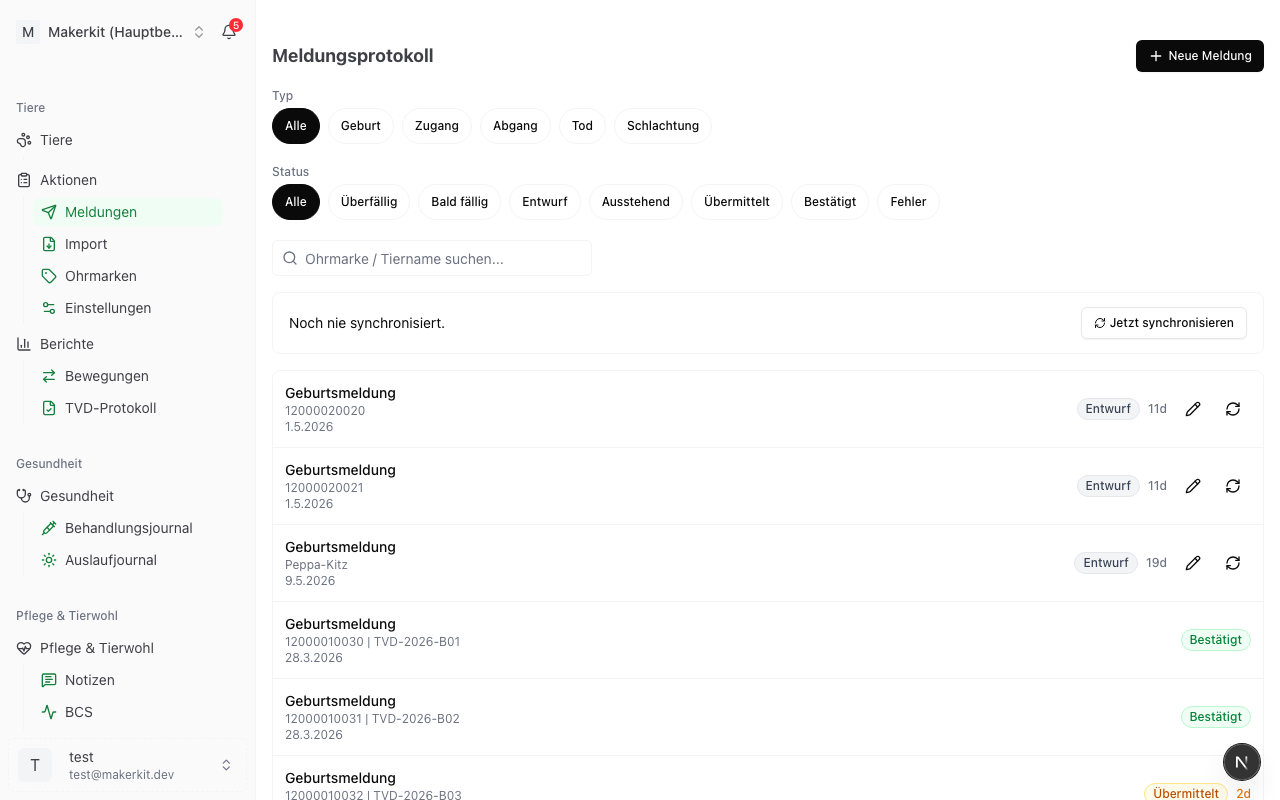
Under TVD > Notifications you find the notification log: everything open and everything done, with deadline, status and the matching actions. This is also where you start a new notification.
Reading the notification log
The list is grouped into sections:
- Overdue: Past the submission date Herdy recommends.
- Due soon: Two days or less to go.
- Open: Everything else that has not reached the TVD yet.
- Done: Submitted, confirmed, cancelled or entered directly in Agate.
Above them you filter by type (birth, arrival, departure, death, slaughter) and by status, and search by ear tag or name. The «Slaughter» filter shows notifications from the time when Herdy still offered that type. New slaughter notifications can no longer be created, see below.
If the last synchronisation is some time ago, Herdy shows the notice Last synchronisation … with the button Synchronise now. A fresh sync keeps you from reporting something that has long been in the TVD.
For farm inspections the same notifications are also available under Reports > TVD log. There, next to the operational view, an audit view shows time stamps and the TVD confirmation ID. See TVD notification log.
Creating a new notification
Click New notification. Herdy offers four types.
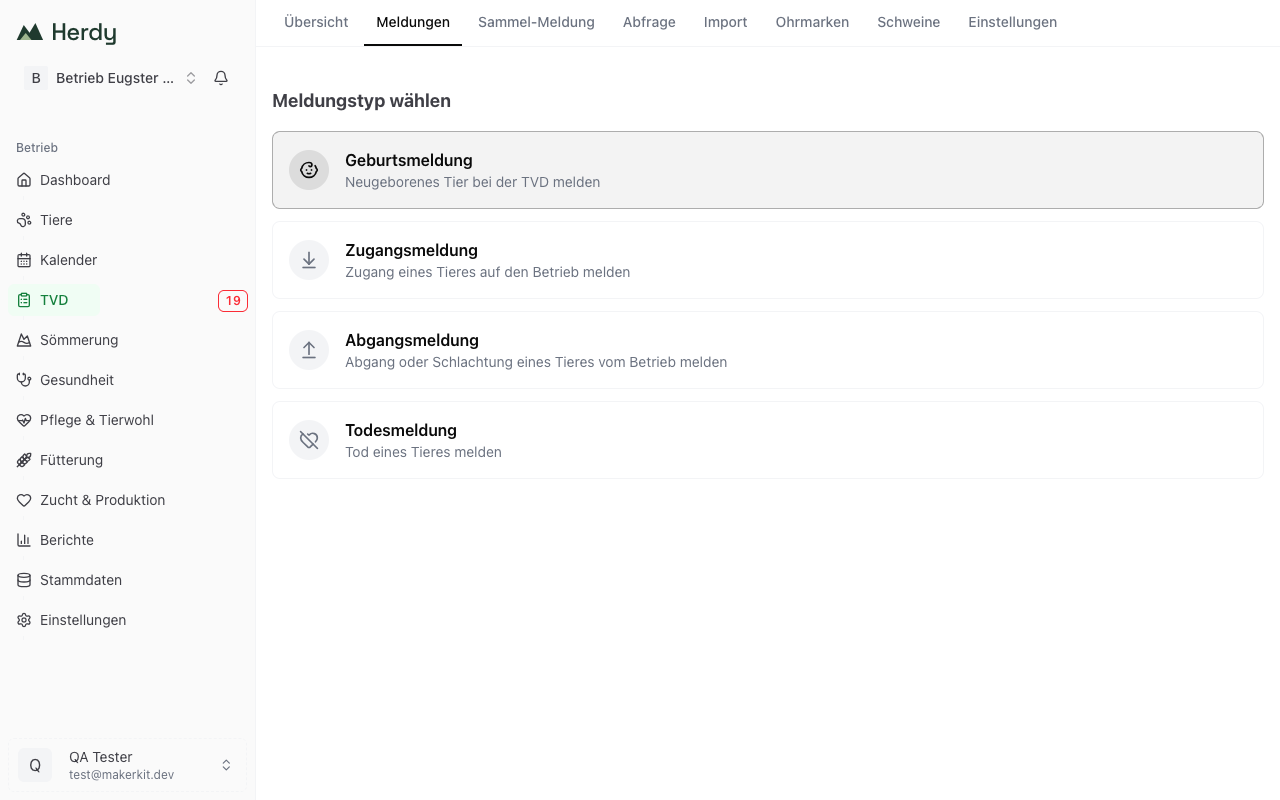
If you start the notification from an animal profile, Herdy first checks which types are possible for that animal. Impossible types are greyed out and name the reason, for example «Animal is already on the holding» or «Animal has no ear tag number».
Scanning the ear tag: The ear tag field of the birth and the arrival notification accepts scans from a paired reader as long as the field has the focus. For a birth notification Herdy also checks whether the scanned species matches the selected species and refuses a scan that contradicts it. Watch the reader setting: if the output format is not «Short ASCII 15», the device may additionally type the number into the form as ordinary keyboard input, including Enter. How to pair and set up a reader is described under Reader for electronic ear tags.
Why there is no slaughter notification: The slaughter notification is filed by the slaughterhouse, for every species (TSV Art. 14 para. 2). You report the departure with the reason «Slaughter». If someone calls the old slaughter notification address directly, Herdy explains this and offers the button Create departure notification with reason «Slaughter».
Birth notification
For lambs and kids. Calf births are recorded in the Breeding & production module, where the notification draft is created automatically.
- Choose New notification > Birth notification.
- Enter the event date, that is the date of birth.
- Enter the young animal's ear tag. You can also scan the tag with a connected reader. On a phone Herdy shows its own number pad so you can still correct a misread tag while a reader is paired.
- Choose species and sex.
- Give breed and colour / markings.
- Check the holding of origin TVD number. That is the birth holding, usually your own.
- Pick the dam from your herd. Do the same for the sire, or tick Sire unknown.
- For a stillbirth tick Stillborn. For multiples enter the litter size.
- Click Send notification or Save as draft.
Herdy warns you when the ear tag already belongs to another animal, and when the dam herself is not yet registered in the TVD. In the second case the TVD would reject the birth notification, so report the dam first.
Tip: If you record the lambing in Breeding & production, Herdy creates the birth notifications for the whole litter as drafts. You only check and send. See Recording births.
Arrival notification
When an animal comes onto your holding.
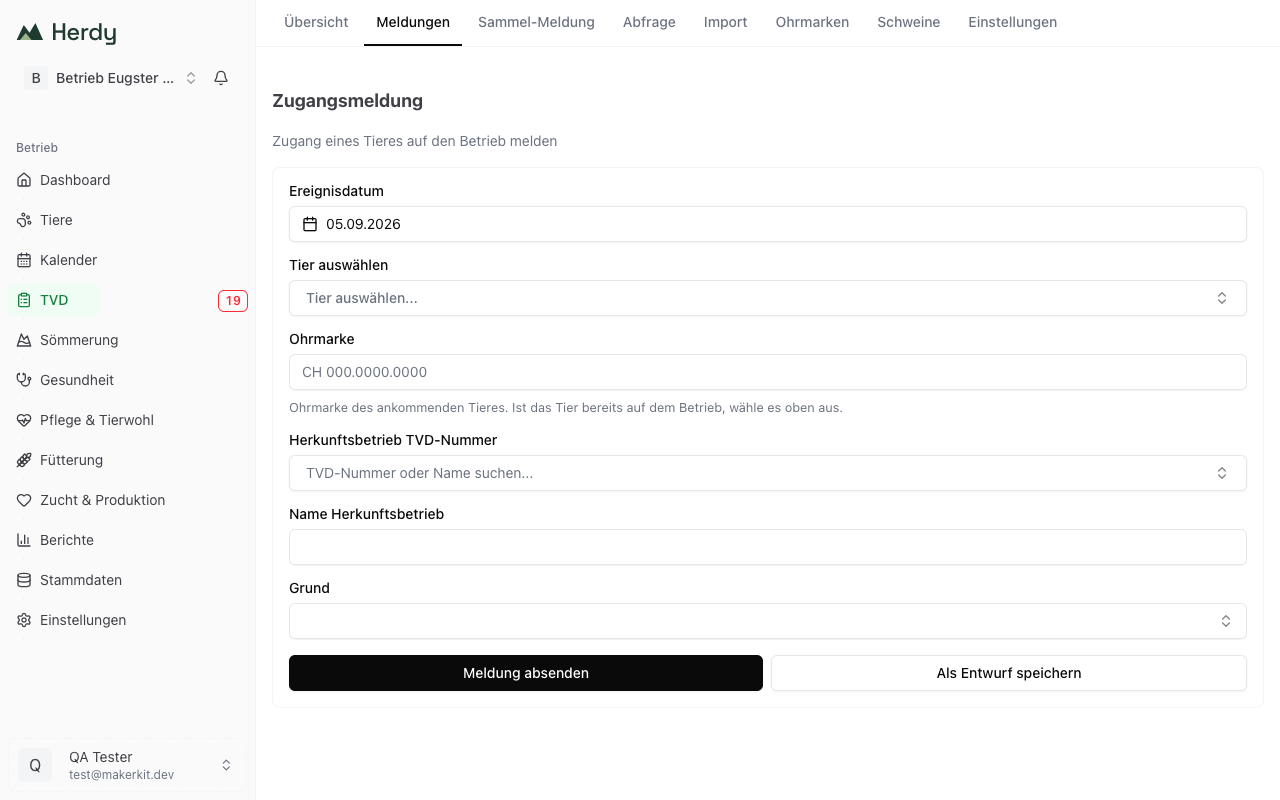
- Choose New notification > Arrival notification.
- Enter the event date, the day of arrival.
- If the animal is already in your herd, pick it under Select animal. The ear tag is then taken over and no longer editable.
- If it is a purchase you have not recorded yet, type or scan the ear tag directly. Herdy creates the animal itself once the TVD confirms.
- Choose or enter the holding of origin TVD number, plus the optional name of the holding of origin.
- Choose the reason: purchase, return from summering, transfer or other reason.
- Click Send notification or Save as draft.
Goats: Arrival notifications for goats are switched off at the TVD interface. Herdy points this out in the form. File them in the TVD web portal on agate.ch.
Departure notification
When an animal leaves your holding, whatever the reason.
- Choose New notification > Departure notification.
- Enter the event date and pick the animal.
- Choose or enter the destination holding TVD number, plus the optional destination holding name.
- Choose the reason: sale, summering, transfer, slaughter or other reason.
- With «Slaughter» the two fields become slaughterhouse TVD number and slaughterhouse, and Herdy reminds you that the slaughter notification itself comes from the slaughterhouse. Your departure notification only records the departure from the holding.
- Click Send notification or Save as draft.
The reason also decides what happens to the animal inside Herdy: with «Summering» it moves to the status «on the alp» and stays visible in herd, breeding, health and care. With every other reason it is recorded as departed.
Death notification
When an animal dies on your holding.
- Choose New notification > Death notification.
- Enter the event date and pick the animal.
- Choose the cause of death: natural, accident, predator, disease or unknown.
- Enter the disposal method.
- Click Send notification or Save as draft.
Note: Cause of death and disposal method are not sent to the TVD. Herdy stores them for your own records, and says so under both fields. The TVD only receives the fact and the date of the death.
If an animal dies on the alp, you do not report it yourself. The summering holding is responsible. Record the loss in the season under Summering, see Alpine summering.
If a young animal dies before it received an ear tag, there is nothing to report. Close the open birth notification with Died before tagging.
Before sending
Confirmation dialog for final notifications
For departure and death Herdy shows a dialog before sending, with animal, ear tag, date and notification type. That way a wrong pick in the type field does not turn into an irreversible filing.
30 seconds of second thoughts
After you click Send notification, Herdy waits 30 seconds before the notification actually goes to the TVD. During that time a bar with two buttons is shown:
- Cancel: Nothing is sent, the form stays as it was.
- Send now: Send immediately, without the rest of the wait.
Withdrawal period warning
If the animal has a running withdrawal period according to the treatment journal, Herdy says so before a departure or slaughter notification and names the date from which the animal is clear. You can continue with Proceed anyway. It is a warning, not a block, and the responsibility stays with you.
Duplicate guard
If Herdy detects an equivalent notification for the same animal on the same date, the second one is blocked. To send it anyway, tick Send anyway (allow duplicate). A notification that was already submitted cannot be unblocked this way, so create a new notification with the box ticked instead.
Draft or send straight away?
- Send notification: Goes to the TVD directly.
- Save as draft: Stays in Herdy, with its deadline and due-date display.
Drafts can be sent individually or in bulk:
- The section Ready to submit lists every draft that is close to or past the recommended submission date. Submit all due sends them in one go.
- With the checkboxes you pick individual drafts and send them via Submit selected.
Incomplete drafts are marked Incomplete and name the missing fields. They are excluded from bulk submission. Complete takes you into the form.
Open birth notifications
While birth notifications are open, the card Open birth notifications appears at the top with the number of litters and lambs and the button Send all open births. The card announces that a litter goes to the TVD as one notification, as the interface intends. Herdy enables this transmission mode centrally; until it is active, Herdy sends each birth as its own notification. With several lambs Herdy asks first and shows the ear tags involved.
Submission continues on the server even if you close the page. When you come back, you see the progress.
Notification statuses
| Status | Meaning |
|---|---|
| Draft | Saved, not yet sent. Editable and deletable. |
| Pending | Sent off, currently being processed. |
| Submitted | Delivered to the TVD. |
| Confirmed | Accepted by the TVD. |
| Error | The TVD rejected it or delivery failed. Herdy names the reason. |
| Registered directly in Agate | You filed the notification in the TVD portal yourself, so Herdy treats it as done. |
| Cancelled | The notification was closed locally, for example because the animal died before tagging. |
Handling failed notifications
For a notification with status Error the reason is shown in plain words right under the row. The TVD's full text is in the details. Depending on the case these actions are available:
- Correct: Opens the notification in the form, with the rejection as context. You change the entries and save the correction.
- Resend: Useful after a temporary fault, when the data is fine.
- Already registered in TVD: For the case where the notification has meanwhile been filed directly in Agate. Herdy then closes it without sending again. You may add the TVD reference. Where possible Herdy fetches the current animal data from the TVD at the same time.
- Died before tagging: Only for open birth notifications of animals without an ear tag. Closes the notification and records the animal as dead.
- Discard: Closes the notification locally without sending anything. For notifications created by mistake, such as a double entry. Notifications already submitted are untouched.
If you marked a notification as «Already registered in TVD» by mistake, Reactivate brings it back as a draft.
Note: A notification the TVD has confirmed can no longer be cancelled in Herdy. The interface no longer supports that for sheep and goats. Contact the TVD in such a case.
Partner farms in notifications
Wherever another holding's TVD number is required, Herdy offers a picker with your saved holdings, grouped into Favourites, Recently used and Others. You can search by TVD number or name. If the holding is not there, choose Enter new number.
After a successful notification Herdy asks whether you want to save the holding you used. Everything else is under Partner farms in TVD work.
Keeping an eye on deadlines
On the TVD overview the widget Upcoming deadlines shows the most urgent notifications with the time left. In the sidebar the «TVD» entry carries a number as soon as notifications are overdue.
Red means «past the recommended submission date», amber «due soon». Herdy counts three calendar days, the law says three working days. The display is therefore deliberately a little early.
Tip: Look at the TVD overview once a week. Late notifications lead to findings during farm inspections.