Overview
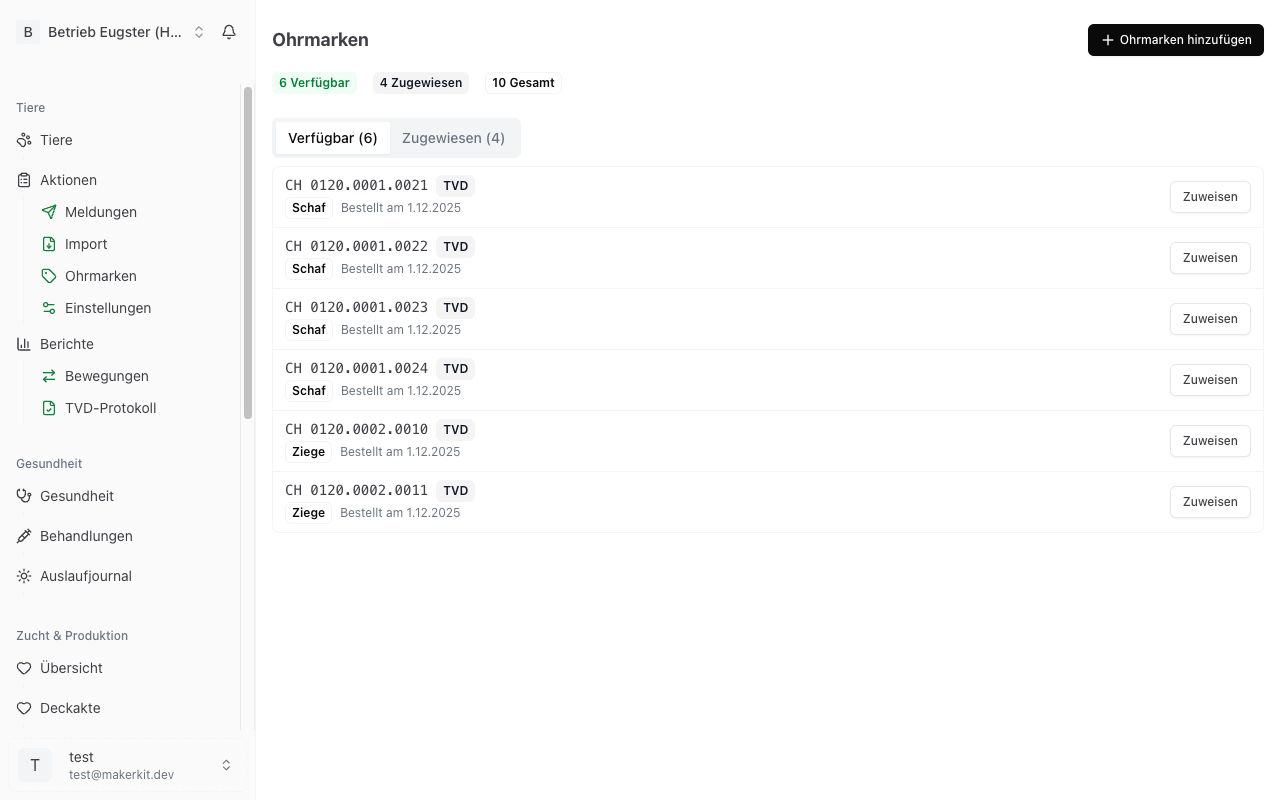
Every farm animal in Switzerland must carry an official ear tag. Herdy shows your ear tag stock in one place: which tags are still free, which you have reserved for an animal and which are already on an animal.
You reach it under Master Data > Ear Tags. Workers and family members only see this area with access to the «TVD» module.
Where the stock comes from
Herdy builds the stock from your orders at TVD, going back about five years. TVD reports the ordered number ranges, not what is left. So Herdy decides what is still free, using two signals:
- The tag is assigned to an animal in Herdy, that is, reserved.
- The number is already on an animal in your herd, so it is used. Herdy detects this even for tags that were never assigned through Herdy.
Everything else counts as available. Used tags stay in the list so the ordered range remains visible in full.
The counters and the three tabs
Four numbers sit at the top of the page, with matching tabs below:
- Available: still free, for newborns and new arrivals.
- Assigned: reserved for an animal in Herdy.
- Used: already on an animal.
- Total: all known tags together.
Each row shows the number, the source (TVD or Manual), the species and, if known, the order date.
Number length per species
The national ear tag number differs in length by species:
| Species | Digits | Example |
|---|---|---|
| Goat | 7 | CH 1234567 |
| Sheep | 8 | CH 1234.5678 |
| Cattle | 12 | CH 120.1919.9981.4 |
When importing from TVD, Herdy reads the species off this length. When you enter a tag by hand, you choose the species yourself.
Adding ear tags manually
Useful when you have received tags that do not yet show up as a TVD order, or when you are entering an existing stock.
Single
- Tap Add Ear Tags.
- Stay on the Single tab.
- Enter the Ear Tag Number.
- Choose the Species (Sheep, Goats or Cattle).
- Add an Order Date if you know it.
- Tap Add.
Batch
- Tap Add Ear Tags.
- Switch to the Batch tab.
- Enter the numbers, one per line.
- Choose the Species for the whole batch and an Order Date if you know it.
- Tap Add All.
Herdy recognises the common spellings: CH 1234.5678, 12345678 or CH 7561.2345.6789. Duplicates within the batch are rejected with the affected numbers listed, and so are tags that already exist in your stock.
Tip: The batch tab is the fast way to take a list of numbers from a letter or an email. Just paste the numbers into the text field.
Assigning an ear tag to an animal
- Stay on the Available tab.
- Tap Assign next to the tag.
- Search for the animal by ear tag or name.
- Tap the animal.
The tag moves to the Assigned tab and shows which animal it belongs to and since when.
Releasing an assignment
- Switch to the Assigned tab.
- Tap Release next to the tag.
The tag is available again afterwards.
Refreshing the stock from TVD
The sync with TVD does not run on this page but under TVD > Ear Tags, where you tap Refresh ear tags. A full TVD synchronisation refreshes the ear tag stock as well. New orders are added and existing assignments are kept.
This requires a connected TVD. The guide is under Ear Tags in TVD and TVD Settings.
Tip: Check the stock before the lambing season. That way you notice in good time whether you have enough tags for the expected births. You order new ones through agate.ch.