Overview
Ration plans connect your animal groups with the feeds you have bought. You keep one plan per group: which feed in which daily quantity, from when and until when. If the ration changes, for example at the switch from winter to summer feeding, you create a new plan; the old one is ended automatically.
The plan is the bridge between purchase and inspection: it shows what was fed, not only what was bought.
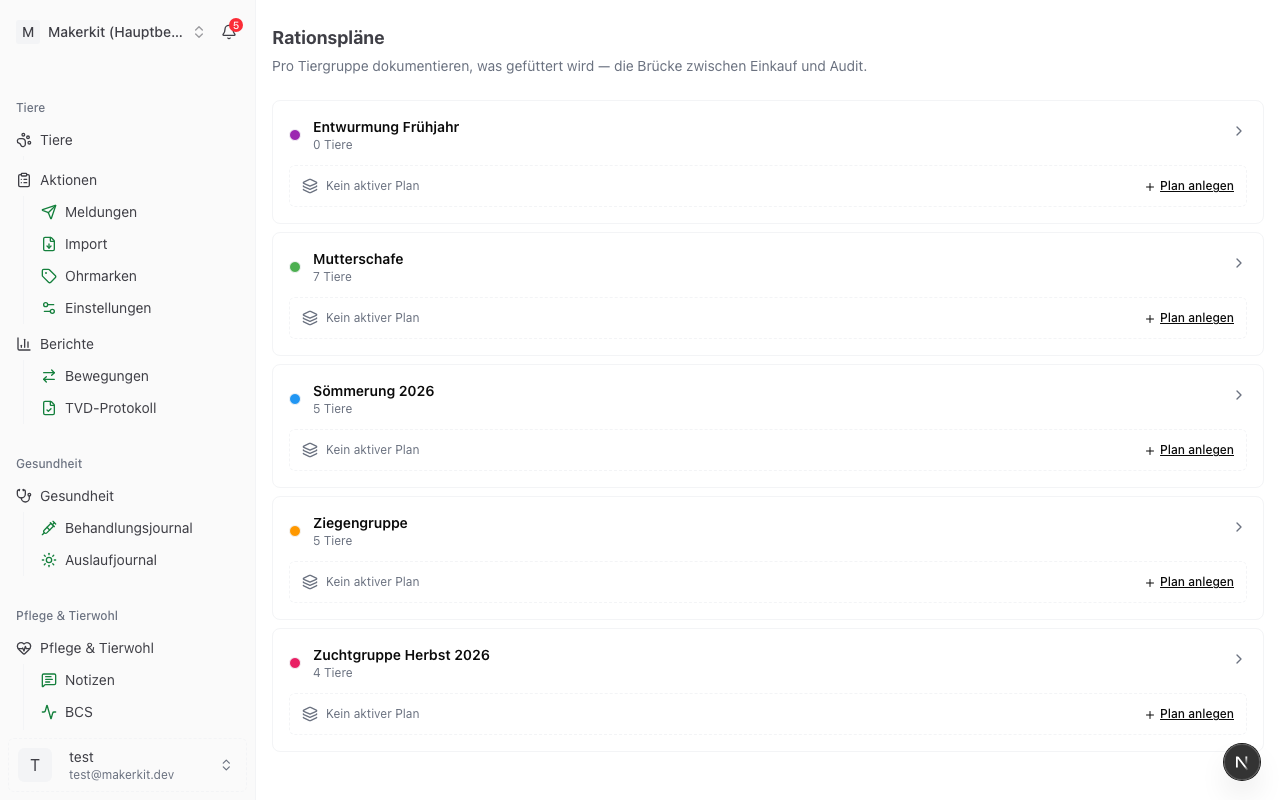
You find the plans under Feeding > Ration Plans.
Prerequisite: Ration plans hang on animal groups. As long as no group has been created, the page points to group management. See Groups.
The overview
For every animal group there is a card with a colour dot, the group name, the number of animals and the number of plans in the history. Underneath:
- Active plan with name, start date, duration in days and the first feeds with their daily quantity
- or No active plan with the Create plan link
A click on the group name opens the timeline of all ration periods of this group.
Creating a ration plan
- Go to Feeding > Ration Plans
- Tap Create plan on the group you want, or open the group and tap New plan
- Fill in the header:
- Name, for example "Summer ration 2026" or "Rearing phase 1"
- Start date, today is preset
- End date, leave empty for an open, running plan
- Automatically close previous active plan, preset as ticked
- Add the feeds
- Optional: Note, for example the reason for the change
- Tap Save
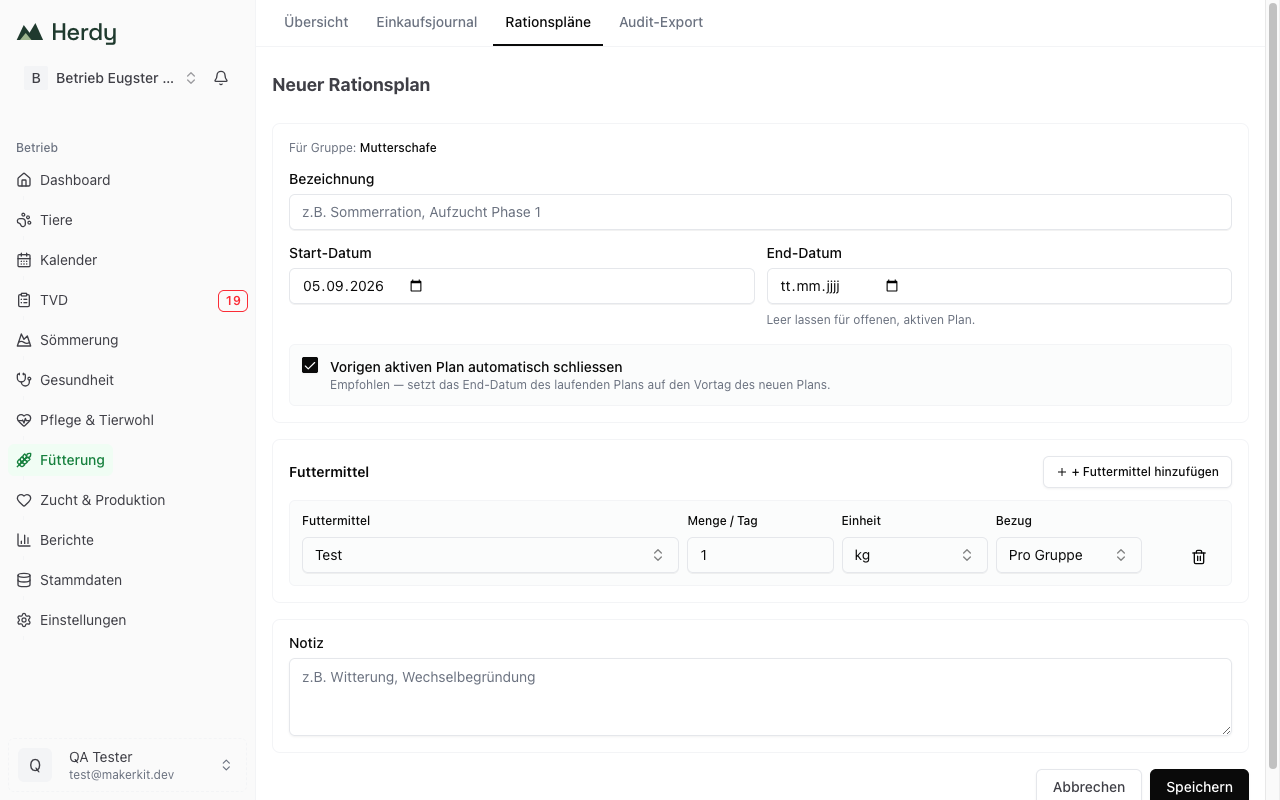
One row per feed
Via + Add feed you create as many rows as you like. Every row has:
- Feed from the master data
- Quantity / day as a number
- Unit, preset with the default unit of the feed
- Basis: Per group calculates the quantity for the whole group, Per animal multiplies it by the number of animals in the group
The basis decides how the plausibility check in the audit export calculates. "300 g of concentrate per animal" and "300 g per group" are two completely different statements.
Note: There is no field for the number of feedings per day. Enter the daily quantity, regardless of whether you feed once or twice. How you split the quantity you can record in the note if needed.
If there is no feed in the master data yet, the Create new feed link appears instead of the rows.
Gap-free handover
If a plan is already active for the group and you create a new one, Herdy sets the end date of the running plan to the day before the new start date, provided the Automatically close previous active plan box is ticked. That way neither gaps nor overlaps arise, which is decisive for the audit trail.
If you untick the box, the old plan stays open. You only need this in exceptional cases, for example when you enter a historical plan afterwards.
Viewing, editing and ending a plan
A click on the active plan or on an entry in the timeline opens the detail page with name, period, duration in days, all feeds with quantity, unit and basis as well as the note.
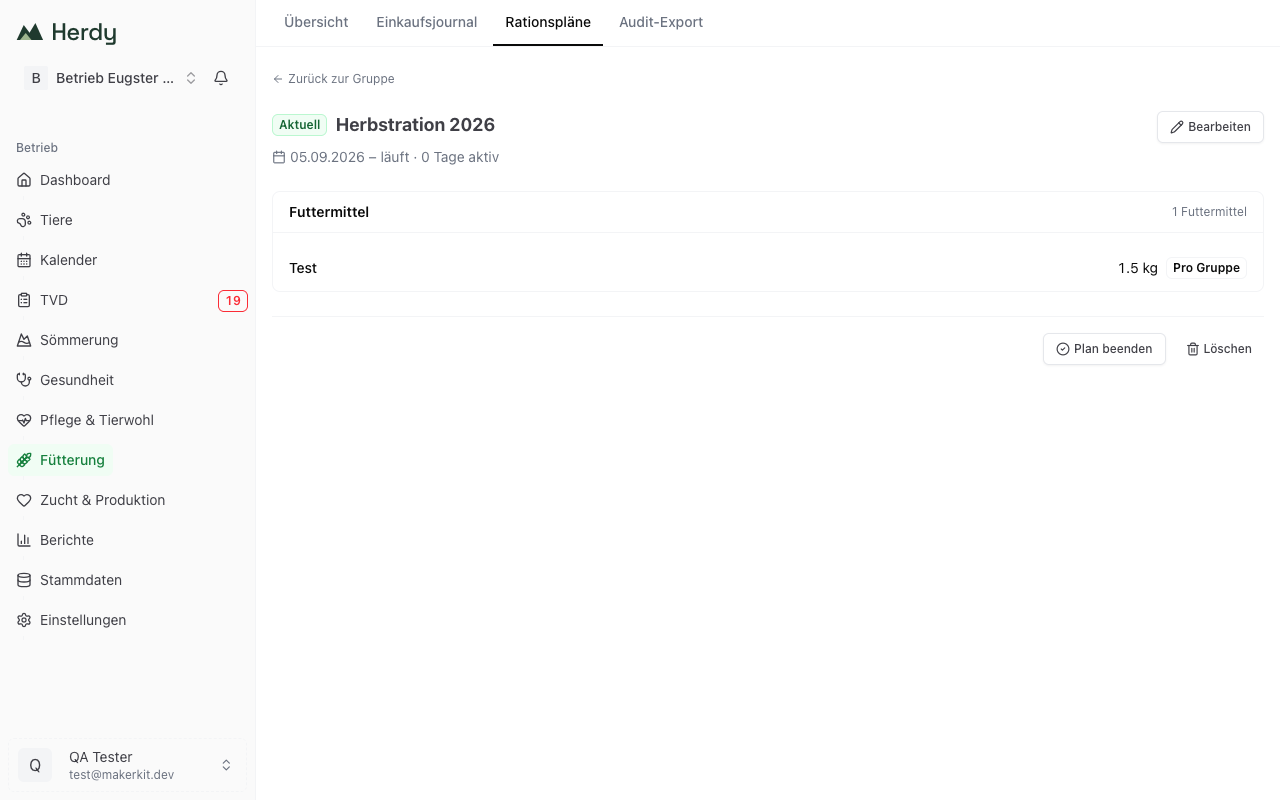
- Edit opens the same form. You can add, change and remove rows as well as adjust the start and end date. The box for closing automatically does not exist here, it only applies when creating a plan.
- End plan sets the end date to today. Use this when a ration runs out and no new one has been decided yet, for example because the group is being dissolved.
- Delete removes the plan permanently. A deleted plan is then also missing from the audit export. Ending it is the better choice when in doubt.
The suggestion from the last plan
Seasonal rations repeat themselves. Herdy therefore fills the form for a new plan automatically with the details of the last plan of the same group: name, note and all feed rows with their quantities. The start date stays on today.
So you do not type anything again, you adjust what has changed and save. If the group has no plan yet, the form starts empty with a single feed row.
Timeline and history
The group page shows the current plan at the top and underneath, via Show previous plans, all completed periods with their period. That way you can reconstruct even years later what was fed in a particular month.
What else the plan does
- Stock estimate on the feeding overview: the daily consumption from the active plans is the denominator of the range calculation
- Farm calendar: the start and end of every plan appear as dates
- Audit export: the ration periods form the second block, and their projected consumption feeds into the plausibility check