Overview
You do not have to enter your animals one by one. Under TVD > Import there are two ways:
- Import from TVD: Loads your animals straight from the animal movement database. The recommended route.
- Import CSV file: For your own spreadsheets and for Agate exports. Needs no Agate connection.
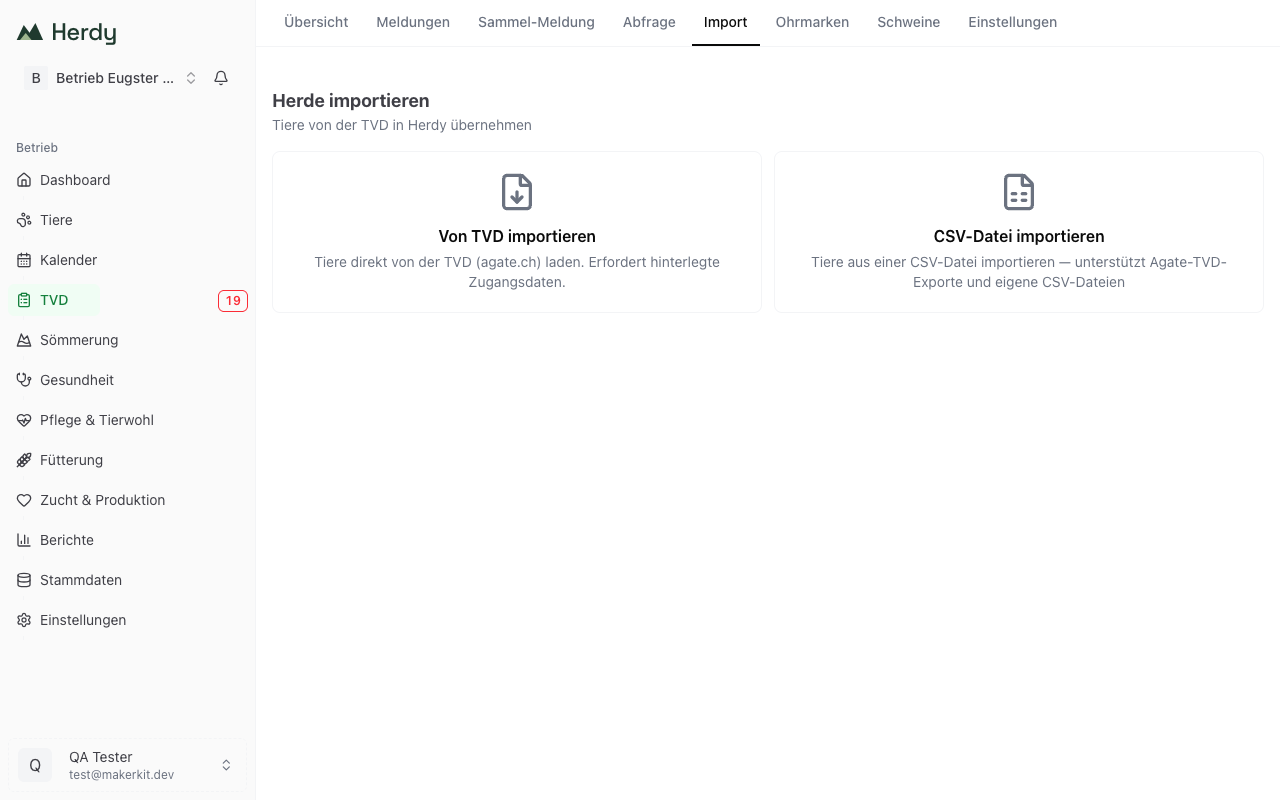
Import from TVD
Requirement
You need a valid Agate session and a linked TVD holding. If either is missing, the Import from TVD tile is greyed out and names exactly the missing step with a link to it. The setup is described under Setting up the TVD connection.
Step by step
- Go to TVD > Import.
- Click the Import from TVD tile.
- Click Import herd from TVD. Loading takes a few seconds, depending on herd size.
- Herdy shows a preview in four groups:
- New animals: Not yet in Herdy, will be created.
- Updates: Already in Herdy but with differing fields. Herdy lists what would change under Changed fields.
- Already departed: Animals the TVD reports as having left your holding. This group is collapsed and deselected by default, because it may include summering animals. You can tick individual animals.
- Unchanged: Already in Herdy and identical.
- Deselect anything you do not want. Deselect all and Select all do it in one go.
- Click Import x animals.
- Herdy shows a summary: how many animals were created and how many updated.
Tip: Feel free to repeat the import, for instance after a purchase. Animals already present are recognised and not duplicated. For day-to-day work the synchronisation under TVD > Settings is usually enough.
Common questions
Are existing animals overwritten? Only the fields Herdy names under «Changed fields» in the preview, and only while the animal stays selected.
What happens to animals I entered by hand? They are kept. If the ear tag matches, Herdy recognises the animal and lists it under «Updates» or «Unchanged».
And animals I recorded without an ear tag? Synchronisation merges them with the matching TVD animal when species, sex and date of birth point unambiguously to exactly one animal. No duplicate is created.
Are leaving dates carried over? Yes. If the TVD holds a leaving date, Herdy takes it over and sets the animal's status accordingly.
Import CSV file
This route needs no Agate connection. It understands both the Herdy template and the CSV exports from the Agate portal.
Download the template
- Open TVD > Import.
- Click the Import CSV file tile.
- Click Download template.
The template contains these columns, in this order:
Ohrmarke, Tierart, Rasse, Geschlecht, Geburtsdatum, Name, Status, Standort, Geburtsbetrieb, Farbe, Bemerkungen
Prepare the file
- The file must be saved semicolon-separated (
;). - Ohrmarke (ear tag) and Tierart (species) are mandatory. The only exception is pigs: they have no individual TVD ear tag, so the column may stay empty there.
- Tierart understands
Schaf,Ziege,RindandSchwein. - Geburtsdatum accepts the Swiss format
31.03.2026as well as2026-03-31. - Goat ear tags may be entered with the seven digits printed on the tag. Herdy adds the leading zero itself.
Upload the file
- Drag the file onto the field or click Select CSV file.
- Herdy checks the file and shows how many valid rows and how many invalid rows it contains. Every invalid row comes with its reason.
- If Herdy recognises an Agate export without a species column, the notice Agate TVD export recognised appears and you pick the species once for the whole file.
- Correct invalid rows in your file and upload again, or import only the valid ones.
- Click Import x animals.
Before the import Herdy shows how many new animals will be created and how many existing ones will be updated. If every animal is already present, it says so explicitly.
Tip: Start with five rows as a test file. That shows you the format before you upload the whole herd.
Which route suits you?
| Criterion | Import from TVD | Import CSV file |
|---|---|---|
| Data source | The official TVD | Your spreadsheet or an Agate export |
| Requirement | Agate session and linked holding | none |
| Currency | Always the TVD state | As current as your file |
| Species | All your Agate account is authorised for | Sheep, goat, cattle, pig |
| Recommended for | The normal case | Special cases and additions |
You can use both routes as often as you like, and one after the other.