Overview
The TVD notification log shows every notification Herdy has created for your farm: drafts, submitted notifications, confirmed notifications and the ones where something went wrong.
You reach the page via Reports > TVD log.
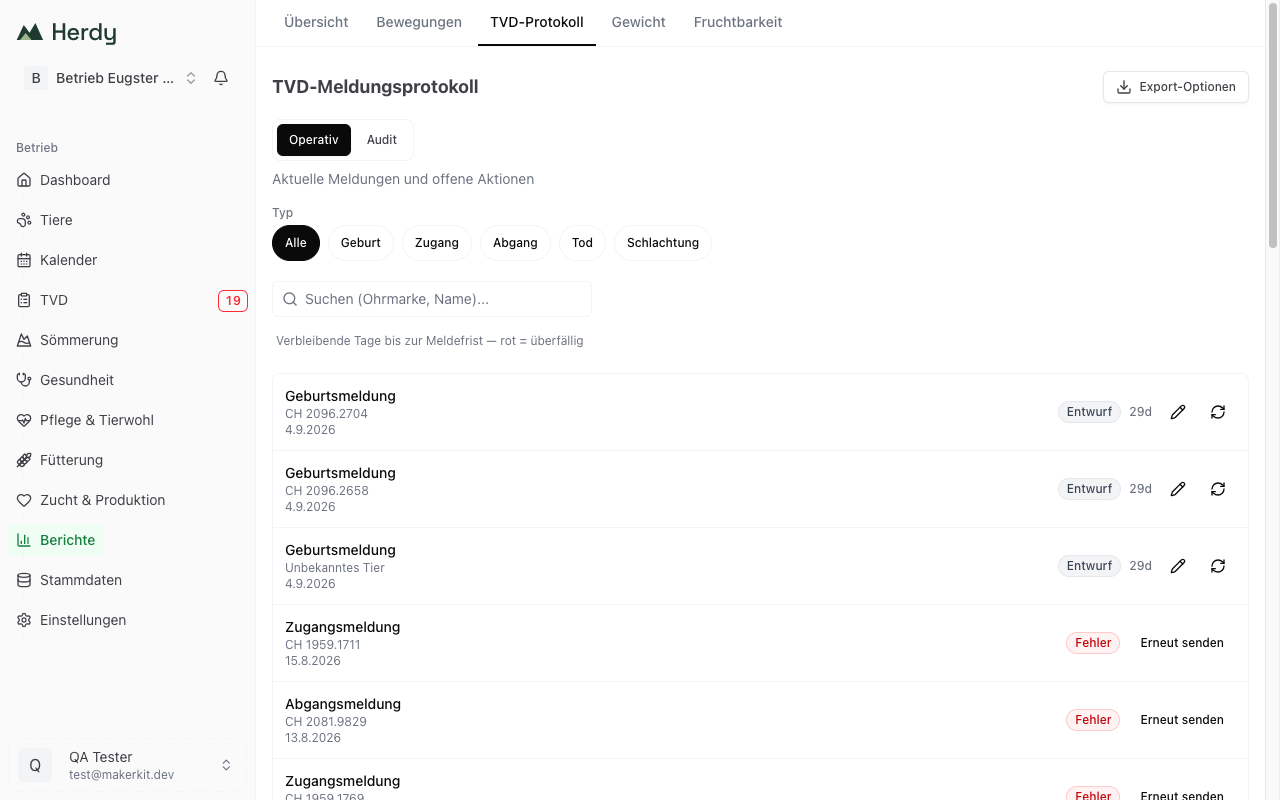
Two views
Two buttons below the title switch between the views.
Operational
«Recent notifications and pending actions». This view is meant for everyday work. Every row shows:
- the type of notification: birth, arrival, departure, death or slaughter notification
- the ear tag of the animal and, once it exists, the TVD reference
- the event date
- the status: Draft, Pending, Submitted, Confirmed or Error
- the days remaining until the reporting deadline, for example «3d». The legend above reads «Days remaining until the reporting deadline — red = overdue». With two or fewer days left the figure turns amber, once the deadline has passed it turns red. Confirmed and errored notifications show no deadline.
Depending on the status, actions appear on the right:
- On Draft: a pencil icon to edit the notification and an arrow icon to submit it straight away.
- On Error: the Retry button.
Tip: check in here daily. The Swiss reporting deadline is three working days; the day counter tells you how much time is left.
Audit
«Complete log with timestamps and reference numbers». This view is meant for inspections. Each entry additionally shows:
- the moment the notification was created in Herdy, to the minute
- Animal: ear tag and name
- Event date
- Confirmation ID: the TVD reference number that lets the notification be looked up there
- Submitted at and Confirmed at, each with date and time
- Details with the key facts of the notification, for example species, dam and sex
As long as a notification has not been submitted, confirmation ID, «Submitted at» and «Confirmed at» show two dashes.
Filtering
- Type: the chips All, Birth, Arrival, Departure, Death and Slaughter are available in both views.
- Status: the chips All, Overdue, Due soon, Draft, Pending, Submitted, Confirmed and Error exist only in the audit view.
- From and To: the date range also exists only in the audit view.
- Search (ear tag, name): the search field is available in both views.
The Reset button clears all filters. The chosen view stays as it is.
Long lists
The operational view shows 30 rows at a time, the audit view 50. If there are more, Load more appears at the bottom.
Export
- Choose the view Operational or Audit.
- Set the filters.
- Tap Export options at the top right.
- Choose Download CSV or Download PDF.
The columns depend on the view:
- Operational: Date, Type, Animal, Status, Due date
- Audit: Date, Type, Animal (ear tag), Animal (name), Status, TVD reference, Submitted, Confirmed, Event date
Important: only the page currently on screen is exported. Narrow the list with the filters before exporting, for example to one quarter.
Preparing for an inspection
- Switch to the Audit view.
- Set From and To to the period under review.
- Tap Export options > Download PDF.
That gives you, for every notification, the confirmation ID and the times of submission and confirmation in black and white.
Creating and correcting notifications
This page is the log. You create new notifications and edit existing ones in the TVD section, see TVD Notifications.