A sort list is a plan for sorting day: you divide animals in advance into up to nine coloured groups, such as "slaughter", "Alp Nord" and "stays". At the sorting table you scan each animal, and Herdy fills the screen with the group colour to show where it goes, with its own tone per group. Herdy calls this a sorting run. It is stored as a record like a count, and afterwards you start the matching follow-up action straight from each group.
Where to find sort lists
- Animal list: In the toolbar, next to Count, sits the button Sort. It opens the Sort lists overview.
- Selection in the animal list: Select animals via Select and the action bar offers Sort list. In the dialog Add to sort list you choose an existing list and group or create one with New list. See Search, filter and export.
- Group page: On the page of an animal group, Sort list from group creates a list with one group of the same name and all members.
- Saved view: In the menu of a saved view, As a sort list turns the filter result into a list with one group.
- Actions: The quick action Sorting run also opens the overview.
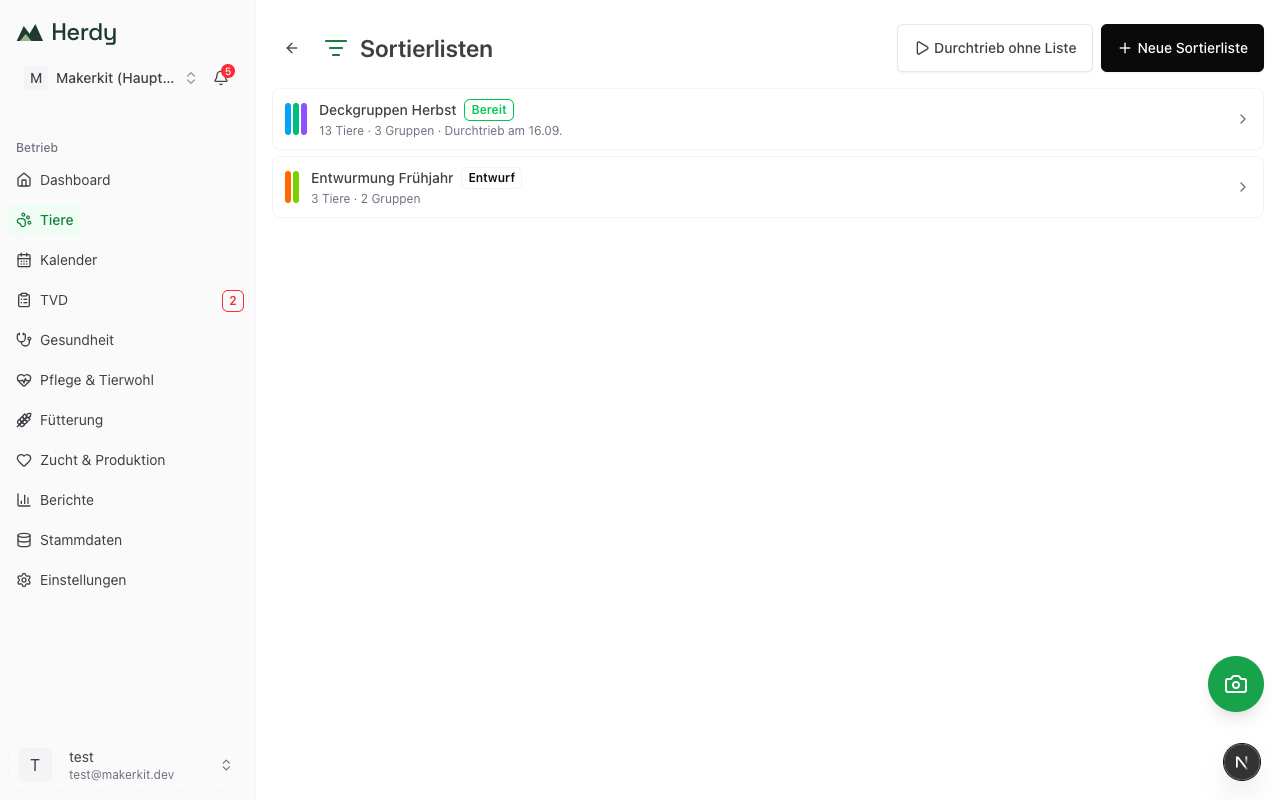
The overview shows per list a colour stripe with one segment per group, the name, the status Draft, Ready or Archived, the number of animals and groups and the last Sorted on date. Ready lists come first, archived ones are collapsed under Archived (n). At the top right you find New sort list and Sorting run without list.
Sort lists require write access to the animals. Anyone with read access only can see the lists and export them, but not change them.
Create a list
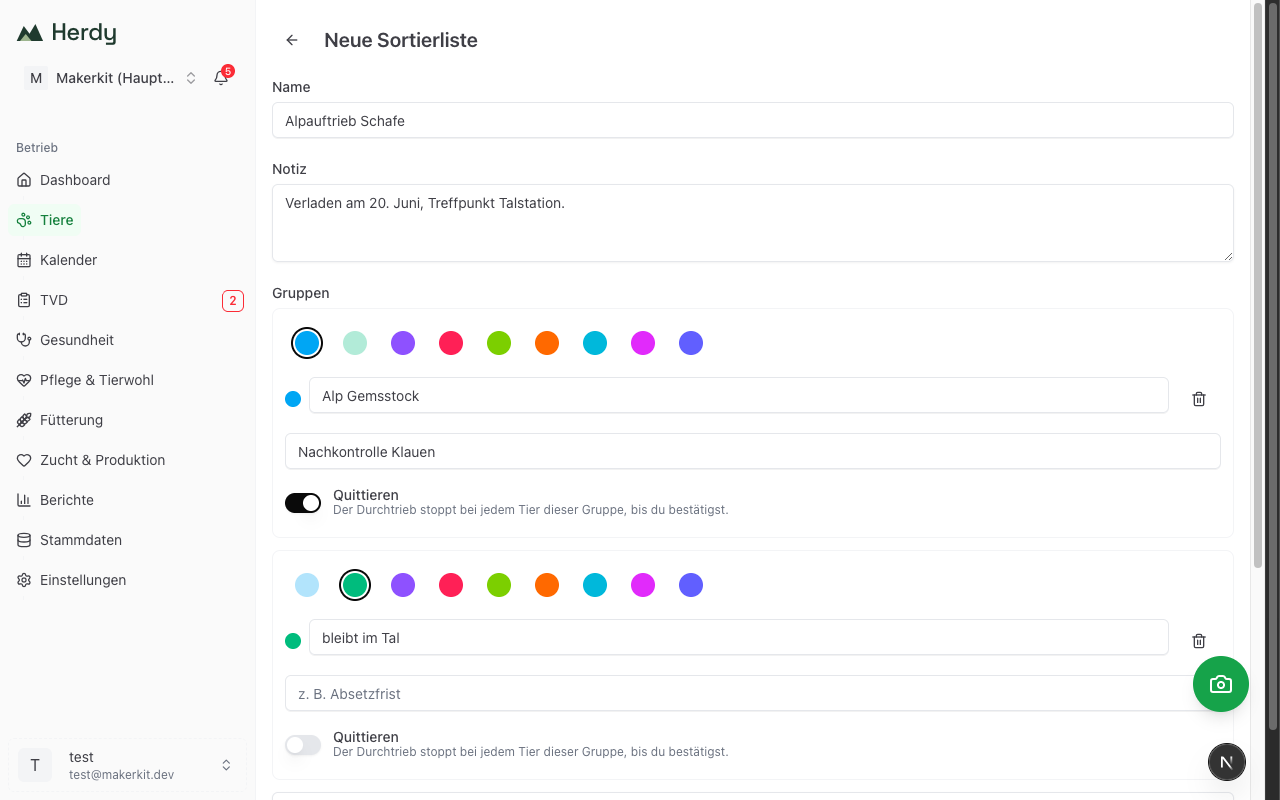
- In the overview, tap New sort list.
- Enter a Name, for example "Autumn 2026", and a Note if needed.
- Define the Groups. Herdy suggests Group 1 in Sky blue and Group 2 in Emerald. For each group you set:
- the Colour from nine colours: Sky blue, Emerald, Violet, Rose, Lime, Orange, Cyan, Fuchsia, Indigo. Each colour may appear only once in a list.
- the Group name
- an Alert text of at most 60 characters, for example "withdrawal period". It appears on the hit card during the sorting run and in the export.
- the switch Acknowledge: the sorting run stops at every animal of this group until you confirm. Use it for groups where a mistake would be costly.
- With Add group you add up to nine groups, with the bin you remove one.
- Tap Create sort list. Herdy opens the list detail, where you add animals.
Build groups from an attribute
Instead of creating the groups by hand, let Herdy derive them from a property of the animals. Tap Build groups from an attribute and choose an attribute: Sex, Age class, Breed, Group, Withdrawal period, Status or Weight class. For the weight class you enter a Threshold in kg and get the two groups "under X kg" and "from X kg". Sex and age class need a Species, because the terms differ per species.
Build groups replaces the groups in the form with one group per value, each already with a colour. You can rename or extend the groups afterwards. If the attribute yields more than nine values, Herdy takes the first nine and tells you. When you add animals later, Herdy assigns them automatically to the group with the matching value.
Add animals
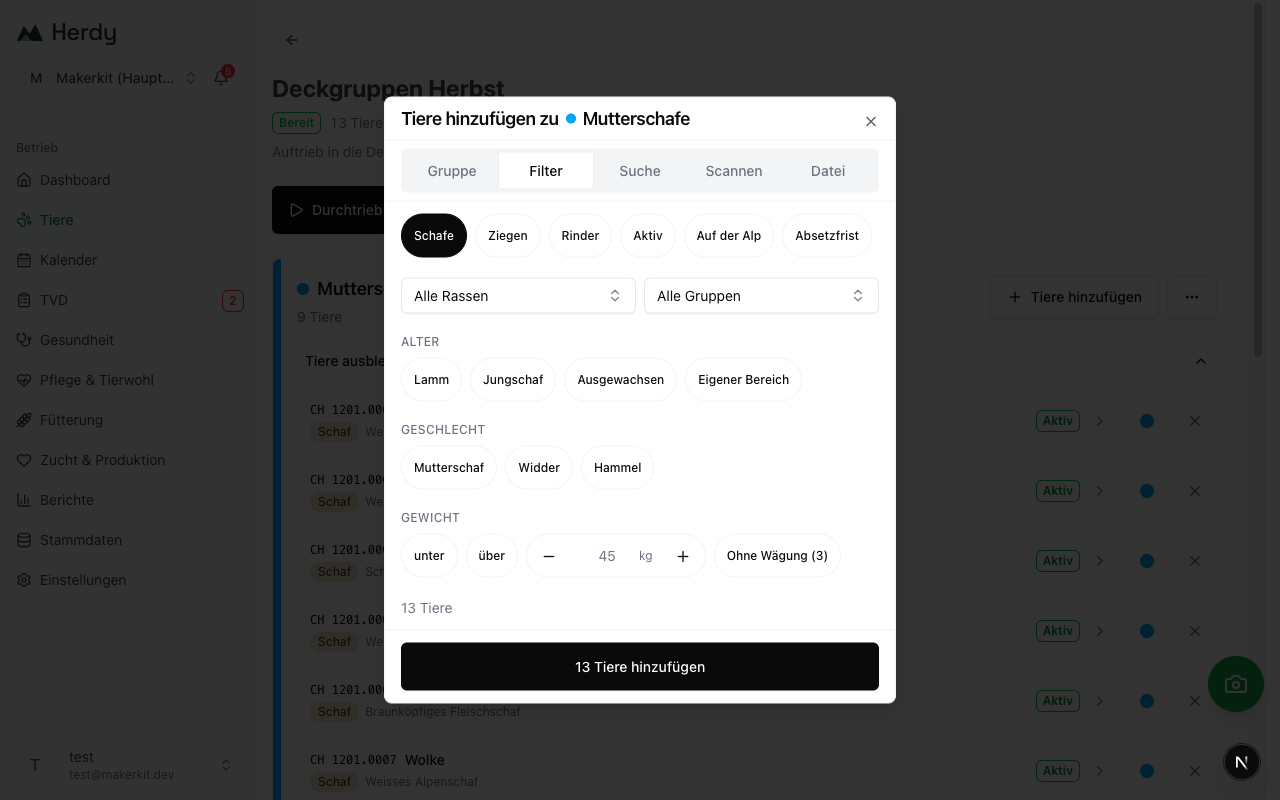
In the list detail every group card carries Add animals. The dialog has five tabs; the selection always lands in the group from which you opened it.
| Tab | How it works |
|---|---|
| Group | Choose one of your animal groups. The preview states the number of animals and how many of them are already in another group of this list. |
| Filter | Species, status, breed, group, withdrawal period, age, sex and weight as in the animal list. The counter keeps track of how many animals match. Saved views are available as chips. |
| Search | A search field and a checkbox per animal, for individual animals. |
| Scan | Start scanning closes the dialog. Every scan lands in this group until you review and confirm the session. See Reader for electronic ear tags. |
| File | A CSV or text file with one ear tag or electronic number per line. The preview states how many tags are known, unknown or duplicated. |
The button Add n animals takes over the selection. An animal is always in exactly one group of a list: if you add an animal that is already in another group of this list, Herdy moves it and reports "n moved from …". With groups built from an attribute, Herdy asks when animals match no group, and you choose their target group.
Move and remove
On every group card you see the animals as rows, collapsed when there are more than twenty. Via the colour-dot menu Move to group an animal changes to another group, via the cross Remove it leaves the list. Herdy confirms both with a message that offers Undo. The animals themselves remain unchanged in the herd; a sort list never changes an animal's status, group or location.
Via More actions in the list header you can rename the list, edit groups (name, colour, alert text, acknowledge; a group with animals can only be removed once you have moved the animals), archive or delete it. Deleting removes the list and its groups, not the animals.
Freeze
Once the division is complete, tap Freeze. The list changes to the status Ready, and Herdy notes the date. With Edit you open it again as a Draft. Starting a sorting run freezes the list automatically.
Sorting run
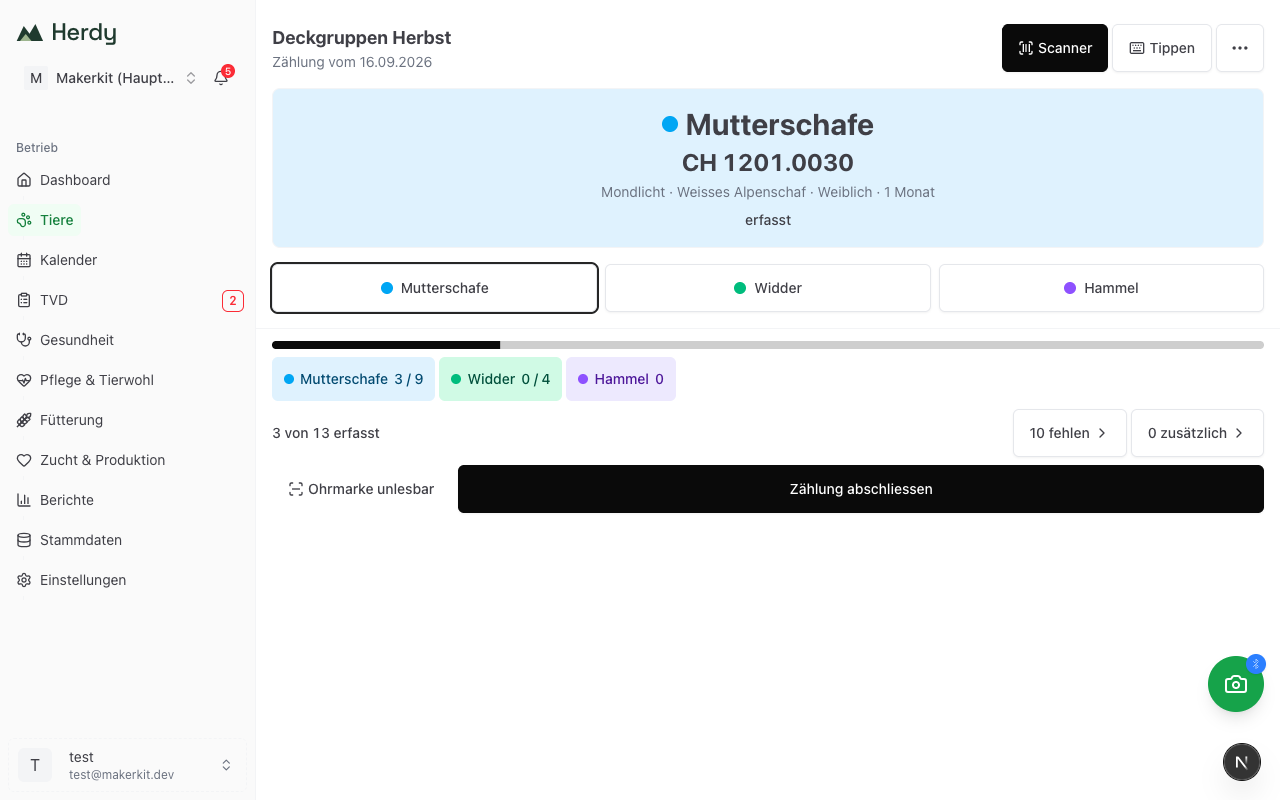
In the detail, tap Start sorting run. Herdy creates a record from the list as for a count, with all active and summered animals of the list, and opens the count page. If a sorting run is already open for the list, Open sorting run takes you there. The record is saved immediately and continuously; you can interrupt at any time and work with several devices at once.
At the sorting table you scan each animal with the reader or type in the ear tag:
- Animal in a group: The hit card fills entirely with the group colour, the group name stands large on it, below it ear tag and name. Every group has its own short tone, and the pitch rises from the first to the ninth group. If the group carries an alert text, it is shown on the card.
- Not on the list: An animal of your farm that is in no group shows a grey card and a single medium tone. Below the card Herdy asks Which group does the animal go to?; a tap on a group button assigns it and adds it to the list.
- Regroup: If an animal goes to a different group than planned, tap the button of that group. Herdy reports "Moved to …" with Undo. The record captures what actually happened; the plan in the list stays unchanged until you update it.
- Acknowledge: With a group set to Acknowledge, the dialog Please confirm opens with colour band, group name and alert text. Only Continue carries on. Scans arriving in the meantime are not lost; they wait and are processed in order afterwards.
- Already recorded: A second scan of the same animal shows a yellow card with the time of the first record.
- Foreign animal: A tag belonging to no animal of your farm shows a blue card and a long low tone. With Record as extra you add it to the record as an additional animal.
- Alert: If the animal carries an alert, it appears as an orange band below the ear tag, with three short tones. See Animal profile.
The footer shows the groups as chips with colour dot and progress, for example "stays 41 / 60". A tap on a chip opens Edit group, where you change name and colour; you need that for the sorting run without a list. Next to it, as in a count, stand n missing with the missing list by group, n extra, Ear tag unreadable and Complete count.
Summary
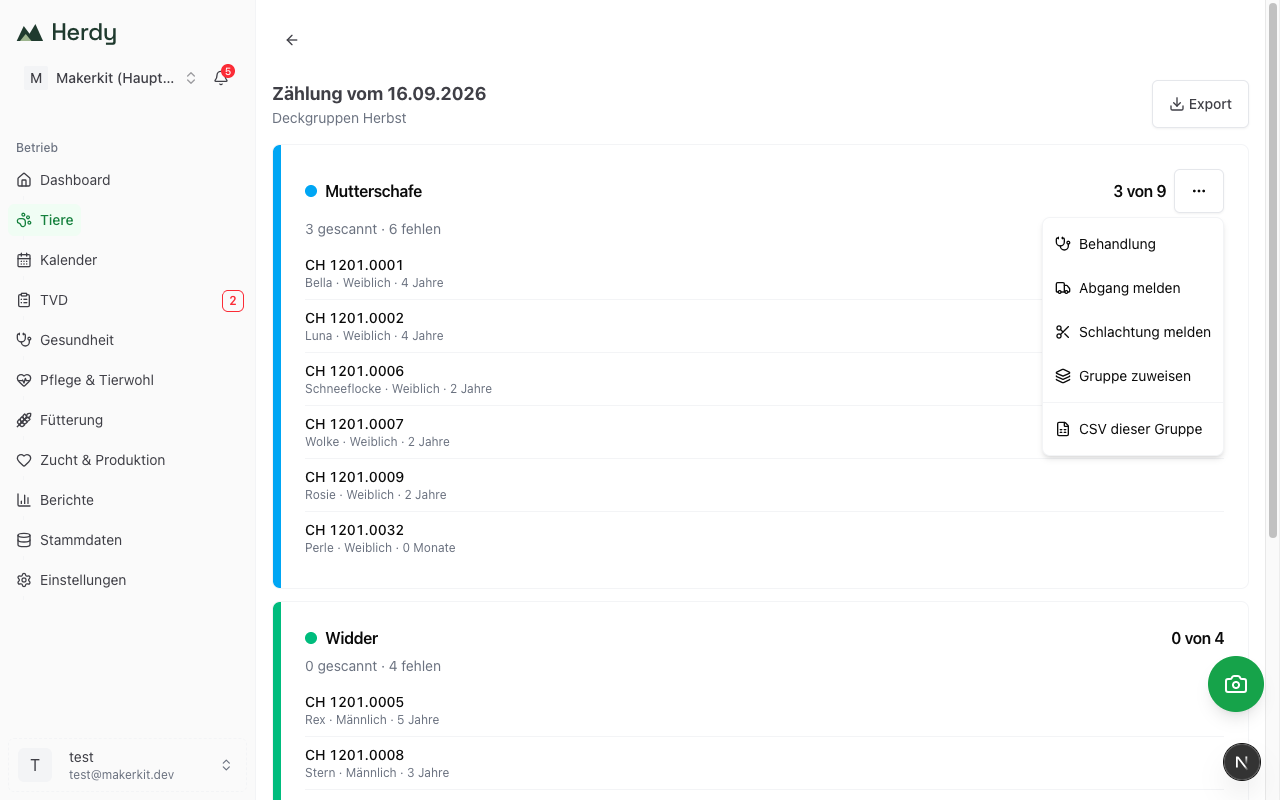
After Complete count Herdy shows one tile per group with colour stripe and progress: "41 scanned", "19 missing", "2 regrouped", "3 assigned", below it the missing animals of the group. Foreign and unreadable animals follow as in a count.
Update list transfers the regroupings and the animals assigned during the run into the list. Herdy reports "n added, m moved", and the list is a Draft again. If all animals went to their planned group, there is nothing to update, and Herdy says so.
At the bottom of the list detail stands the history Sorting runs with start, completion and "x of y recorded". A list can have any number of sorting runs, for example for selling in batches. A cancelled run stays in the history as Cancelled.
You export the record from the summary via Export as CSV or PDF; for a sorting run it contains the column Sort group.
Sorting run without list
When loading there is often no preparation. In the overview tap Sorting run without list: Herdy creates the list "Sorting run" with today's date, the groups Group 1 and Group 2 and no animals, and starts the run immediately. Every scanned animal is "Not on the list", and a tap on the group button assigns it. Via the chips in the footer you give the groups their names, for example "Lorry 1" and "Lorry 2". The list remains afterwards and can be updated and exported like any other.
After sorting
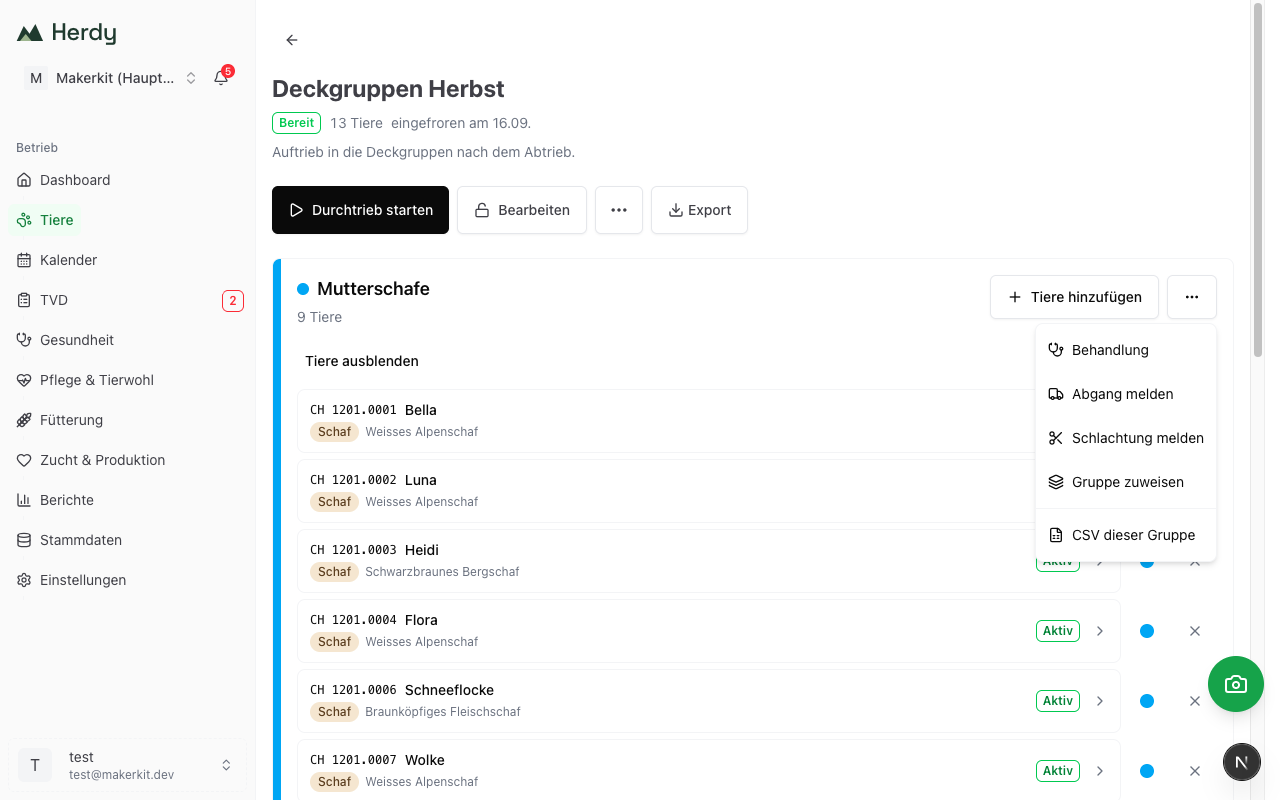
On every group card in the detail and on every tile of the summary, next to Add animals, sits the menu Actions for this group with the follow-up actions for exactly the animals of this group. In the summary these are the animals that actually went to the group.
- Treatment: opens the batch treatment with the animals of the group. See Treatments.
- Report departure: opens the assistant for TVD notifications with the type Departure and the animals preselected; you choose the reason in the assistant.
- Report slaughter: the same departure notification with the reason "slaughter" preselected. The entry appears only if the group contains at least one sheep or goat; the assistant leaves cattle out and tells you. See TVD notifications.
- Assign group: assigns the animals to one of your animal groups, with search and one tick. See Group management.
- Summering: opens New season with the animals of the group preselected. If the list belongs to a season, Go to season appears instead. Only with the Summering module.
- CSV of this group: downloads only this group as CSV.
None of these actions happens by itself: every target shows the animals again and waits for your confirmation.
More than 50 animals: Up to 50 animals Herdy hands over via the link, so you can also open the target in a new tab. Larger groups travel via the scan tray, which the target picks up when it opens. Animals without an ear tag cannot be passed on this way; Herdy states their number.
Export
In the detail, next to More actions, sits the Export menu as soon as the list contains animals. It is also available to people without write access.
- As CSV: one row per animal with the columns ear tag, name, species, breed, sex, group and alert text, semicolon as separator, opens in Excel and Numbers.
- As PDF: A4 landscape with farm name, export date, status and the number of animals and groups in the header. Per group follows a colour bar with group name, count and alert text and below it the table with the same columns. The group name stands in every row so that the list stays readable when printed in black and white.
The groups appear in the order of the list, within a group by ear tag. The file name starts with "herdy-sortierliste-", followed by the list name and the date.
Tip: Print the PDF list for the barn wall or give the CSV file to the haulier. An export for readers of other manufacturers is not provided.
From the scan tray into a list
If you have gathered animals in the scan tray, Continue with n animals offers the target Sort list. Herdy opens the overview with the dialog Add to sort list: choose list and group or create a new one with New list and tap Continue to the list. Then the detail opens with a session for this group in which the scanned tags are already listed. Review and confirm them as with the Scan tab; only then are the animals in the group. Tags that belong to no animal of your farm are rejected by the session. If you cancel, the tray stays filled. See Reader for electronic ear tags.
Summering: sorting run for the alp ascent
On the season page of a planned or running summering stands Sorting run for the alp ascent. Herdy creates from it the sort list "Alp ascent" with the name of the alp, with the group "Alp" plus alp name in Sky blue, holding all animals of the season, and the empty group "stays" in Emerald, and starts the sorting run immediately. Animals that are not to go to the alp you assign with a tap to the group stays while scanning. There is exactly one such list per season: a second tap opens the existing one. From the group "Alp", Go to season leads back to the season page. More on this under Manage season.